A plain black-and-white QR code does the job. But if you run a hotel, restaurant, or any business where presentation matters, a branded WiFi QR code does it better. Adding your logo and brand colors turns a generic square into something that looks intentional — like it belongs on your menu, room card, or front desk.
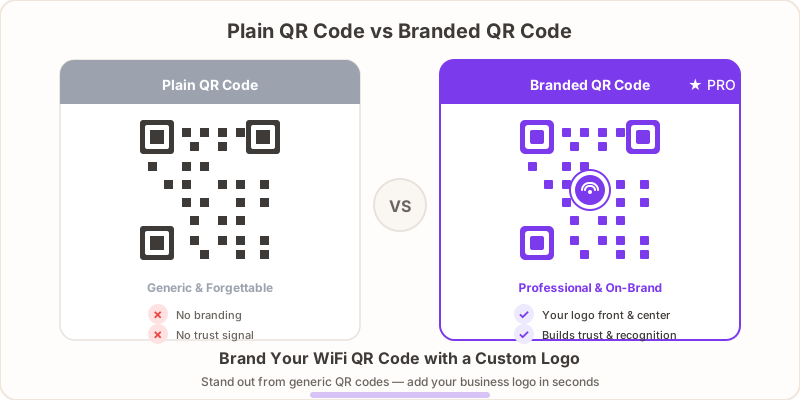
This guide walks you through creating a WiFi QR code with a custom logo using GetWiFiQR Pro, plus best practices for colors, sizing, and placement so your branded code looks great and scans every time.
Why Brand Your WiFi QR Code?
A WiFi QR code is often one of the first things a guest interacts with at your business. Here is why it is worth making it look professional:
- Trust — A branded QR code signals legitimacy. Guests are more likely to scan a code with a recognizable logo than a random black-and-white square. In a world where QR code scams make headlines, brand recognition provides reassurance.
- Professionalism — A custom QR code shows attention to detail. It says you care about the guest experience from the moment they arrive.
- Brand consistency — Your WiFi QR code appears on table tents, wall signs, room cards, and printed materials. When it carries your logo and colors, it fits naturally alongside the rest of your branding.
- Recognition — In shared spaces like co-working offices or food halls with multiple vendors, a branded code makes it clear which network belongs to which business.
The difference between a generic QR code and a branded one is the same as the difference between a handwritten “WiFi password” note and a professionally designed sign. Both work — but one builds confidence.
How to Add a Custom Logo to Your WiFi QR Code
Creating a branded WiFi QR code with GetWiFiQR takes about a minute:
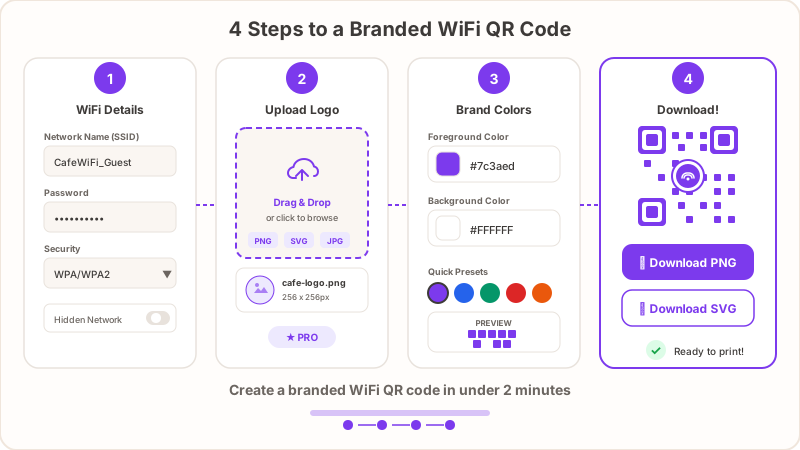
Step 1: Enter Your WiFi Details
Go to getwifiqr.com/generator and fill in your network information:
- Network name (SSID) — The exact name your router broadcasts.
- Password — Your WiFi password.
- Security type — WPA/WPA2 for most networks. Select WPA3 if your router supports it.
If you need help with this step, our step-by-step WiFi QR code creation guide covers it in detail.
Step 2: Upload Your Logo
With GetWiFiQR Pro, you will see a logo upload option in the customization panel. Click to upload your logo file.
What works best:
- PNG or SVG with a transparent background
- Square aspect ratio (the logo sits in the center of the QR code)
- Simple, recognizable design — avoid logos with thin lines or tiny text that won’t be readable at small sizes
The generator places your logo in the center of the QR code and automatically adjusts the surrounding modules so the code remains scannable.
Step 3: Customize Colors
Next, set your brand colors:
- Foreground color — The dark modules of the QR code. This is usually black, but you can set it to your primary brand color.
- Background color — The light areas. Usually white, but can be any light color.
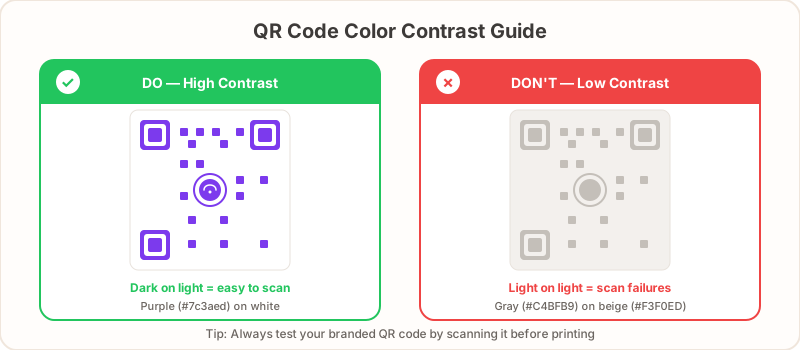
The key rule: maintain strong contrast between foreground and background. Dark on light works best. Avoid light-on-light or dark-on-dark combinations — they look interesting but scan poorly in real-world conditions.
Step 4: Generate and Download
Click generate to preview your branded QR code. Download it as SVG for print or PNG for digital use. Always test the code by scanning it with your phone before printing.
Custom Colors and Brand Matching
Color customization goes beyond picking your brand’s hex codes. Here are practical tips:
- Use your primary brand color for the foreground — This gives the strongest brand association. A hotel with navy blue branding, for example, can use navy modules on a white background.
- Keep the background light — QR scanners look for dark modules on a light background. Inverting this (light modules on dark) works in theory but fails more often in practice, especially under poor lighting or at angles.
- Test on the actual material — Colors look different on screen versus printed on glossy card stock, matte paper, or acrylic. Print a test and scan it before ordering a full batch.
- Consider the environment — A QR code on a dark wood table tent needs more contrast than one on a white wall poster. Match your color choices to where the code will actually live.
Best Practices for Logo QR Codes
Adding a logo to a QR code means covering part of the data. QR codes handle this through error correction — redundant data that allows the code to be read even when partially damaged or obscured. Here is how to keep your branded codes reliable:
Size the Logo Correctly
The logo should cover no more than 20–25% of the QR code area. GetWiFiQR Pro handles this automatically, but if you are placing a logo manually in a design tool, this is the limit. Go larger and you risk scan failures.
Use High Error Correction
QR codes have four error correction levels: L (7%), M (15%), Q (25%), and H (30%). For codes with logos, you want level H — it allows the most data to be obscured while still scanning correctly. GetWiFiQR Pro uses high error correction by default when you add a logo.
Keep the Quiet Zone Clear
The “quiet zone” is the blank margin around the QR code. It needs to be at least four modules wide. Do not let your design bleed into this margin — scanners need it to find the edges of the code.
Test on Multiple Devices
Before printing, scan your branded QR code with:
- An iPhone (using the built-in camera app)
- An Android phone (using the built-in camera or Google Lens)
- A tablet, if your guests are likely to use one
Different cameras and apps handle QR scanning differently. A code that scans fine on one device might struggle on another, especially if contrast is low or the logo is too large.
Plain vs. Branded QR Codes: The Difference
Here is what changes when you brand your WiFi QR code:
| Plain QR Code | Branded QR Code | |
|---|---|---|
| Appearance | Black and white, generic | Your logo, your colors |
| Guest trust | Functional but anonymous | Recognizable and professional |
| Brand consistency | None | Matches your other materials |
| Scan reliability | High | High (with proper sizing) |
| Cost | Free | GetWiFiQR Pro — $9/30 days or $29 lifetime |
The scan experience is identical for the guest — point the camera, connect to WiFi. The difference is entirely in the impression your business makes before the scan happens.
Where to Display Branded QR Codes
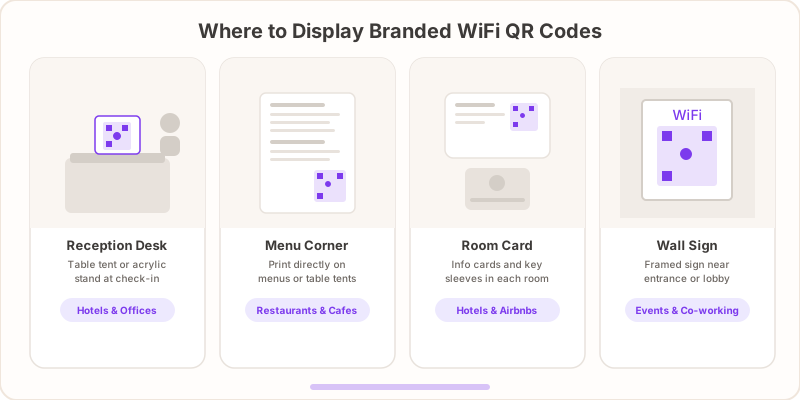
A branded QR code deserves better than a plain sheet of paper taped to the wall. Here are the most effective placements:
- Reception and front desk — A table tent or acrylic stand where guests check in. This is the first place visitors look for WiFi. Hotels can include it alongside key cards and welcome materials.
- Table tents and menus — Restaurants can print the QR code directly on table tents or at the bottom of the menu. Branded codes look native to the design rather than pasted on.
- Room cards and key sleeves — Hotels and Airbnbs can print branded QR codes on the information card in each room. Guests find them the moment they need WiFi.
- Wall-mounted signs — A framed sign near the entrance or in common areas. Use your brand colors and logo so it doubles as subtle branding.
- Digital displays — Lobby screens, in-room tablets, or digital signage. Branded QR codes look polished next to other on-screen content.
- Event materials — Conference badges, programs, and sponsor banners. A branded code tells attendees exactly whose network they are connecting to.
For printing tips, file formats, and recommended sizes, see our WiFi QR code print guide.
Create Your Branded WiFi QR Code
A branded WiFi QR code takes one minute to create and makes every guest interaction with your WiFi more professional. Get started with GetWiFiQR Pro — upload your logo, pick your colors, and download a print-ready QR code that matches your business.
Not ready for Pro? Create a free WiFi QR code first and upgrade when you need branding.
Related Articles
- Best WiFi QR Code Generators Compared (2026) — see how GetWiFiQR’s branding features compare to other tools
- How to Create a WiFi QR Code (Free Step-by-Step Guide) — complete walkthrough of the generation process
- Print Your WiFi QR Code — Sizes, Materials, and Placement Guide — get your branded code printed and displayed
- Hotel Guest WiFi Setup — A Complete Guide — WiFi best practices for hotels, including branded QR codes
- Guest WiFi Best Practices — Keep Your Network Safe and Guests Happy — security and UX tips for guest networks