Someone asks for your WiFi password. You know it is something like BlueSky_7f3a91! and you have to either spell it out letter by letter or hand them your phone to type it in themselves.
There is a better way. Android has a built-in Share button that generates a QR code on the spot. The other person scans it with their camera and they are on the network in seconds — no typing, no squinting at a random string of characters.
Here is exactly how to do it.
Step-by-Step: The Built-In Android Share Button
These steps are from a Pixel 9 running Android 17. The exact wording may differ slightly on Samsung, OnePlus, or other Android skins, but the path is the same.
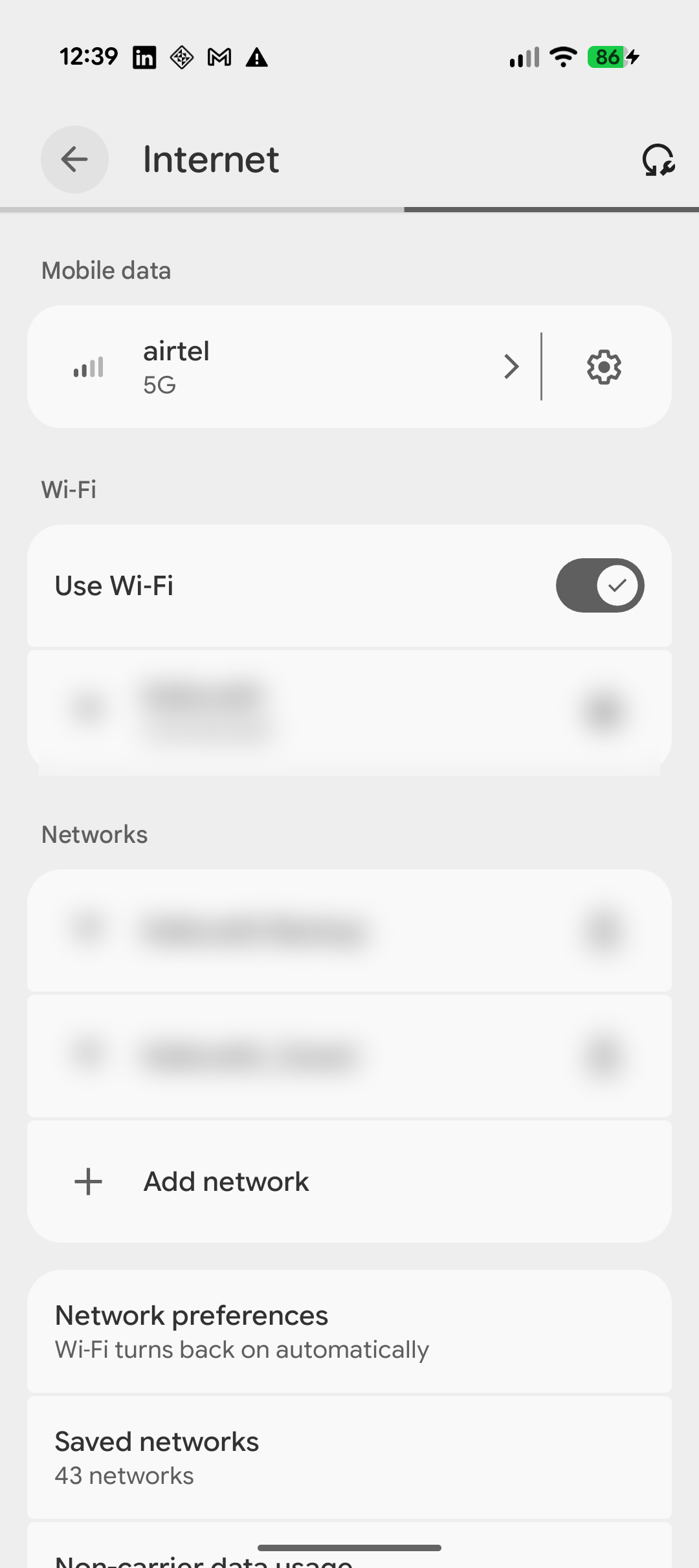
Step 1: Open Settings → Internet and tap the gear icon
Open the Settings app. Tap Internet (on some phones it is Network & internet → Wi-Fi). You will see your connected network listed. Tap the gear icon next to it.
Step 2: Tap the “Share” button
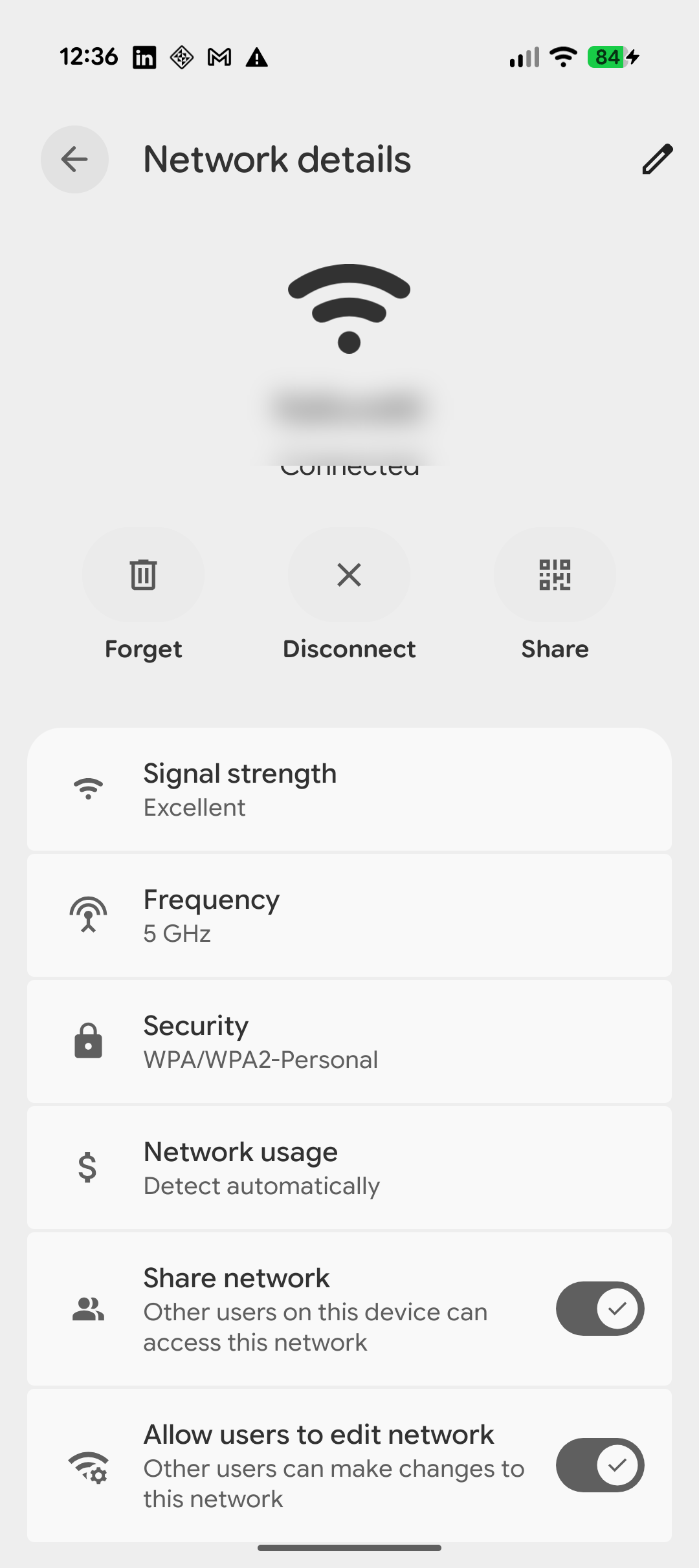
The Network details screen shows a row of buttons at the top: Forget, Disconnect, and Share. Tap Share.
You will also see useful info here — signal strength, frequency band (2.4 GHz vs 5 GHz), and security type. But right now all you need is that Share button.
Step 3: Let the other person scan the QR code
The Share Wi-Fi screen appears with a QR code. The password field is intentionally blank — Android does not display the raw password here.
Tell the other person to open their camera app and point it at the screen. They will see a prompt to join the network. One tap and they are in.
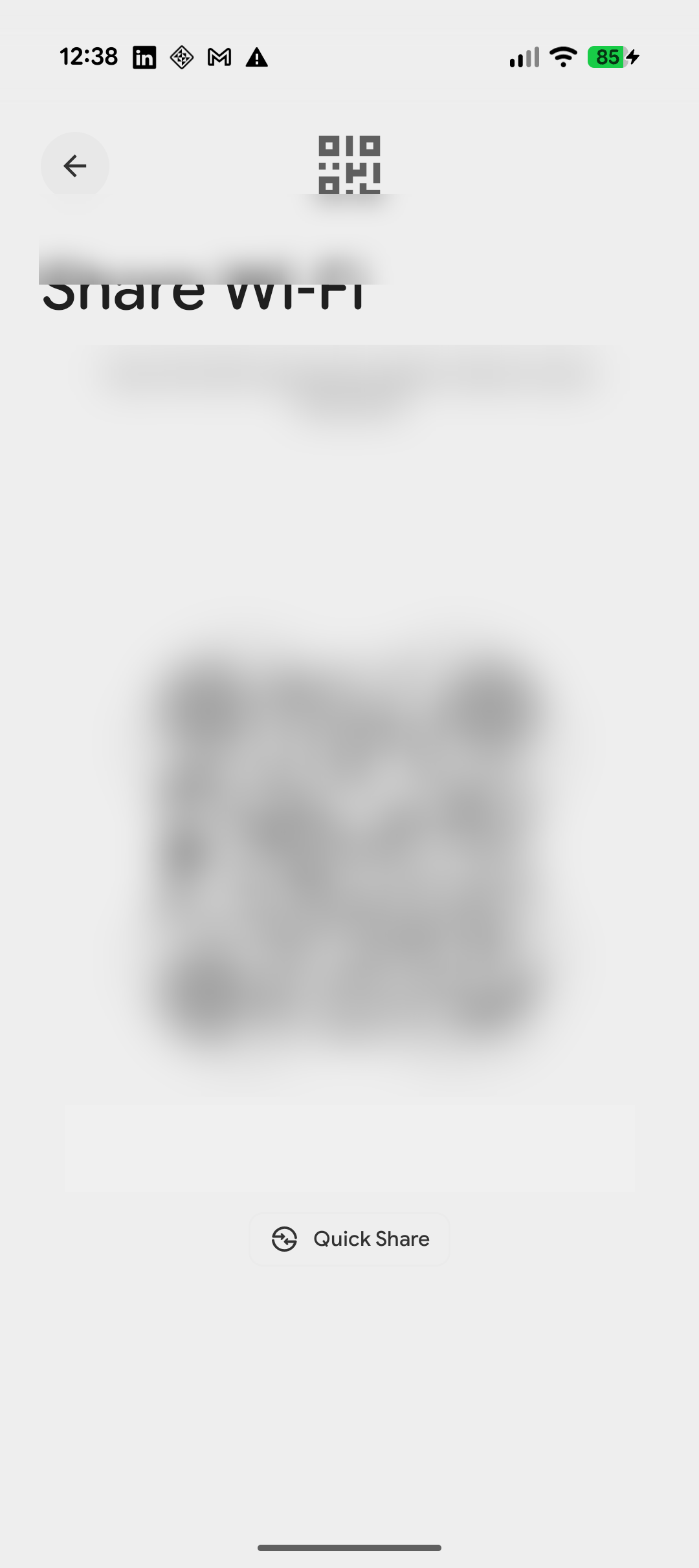
You will also notice a Quick Share button on this screen. That sends the WiFi credentials directly to a nearby Android device over Bluetooth or Wi-Fi Direct — useful if the other person is right next to you and you prefer not to hold up your screen for scanning.
That is it. Three taps from Settings to a connected guest.
For the other side of this — how to scan a WiFi QR code that someone shows you — see our WiFi QR code scanning guide.
What If the Share Button Is Not There?
If you do not see a Share button on the Network details screen, your phone is probably running Android 9 or earlier. The Share feature was added in Android 10.
A few things to try:
- Long-press the network name in Wi-Fi settings. On some older phones, a context menu appears with a “Share” or “Share network” option.
- Check your router’s admin page. Log in to your router (usually at
192.168.1.1or192.168.0.1) and look for the WiFi password under your wireless settings. You can then type it out manually or generate a QR code from it. - Update Android if possible. Go to Settings → About phone → Software update. If Android 10 or later is available for your device, updating will unlock the Share button.
If none of those work, the easiest option is to log in to your router and create a permanent QR code for your network that anyone can scan going forward.
Sharing WiFi With Guests at Your Business
The Share button is great for one-off situations — a friend visiting your home, a colleague who needs to jump on the office network for an afternoon.
But if you run a restaurant, cafe, Airbnb, or hotel, you do not want to pull out your phone and generate a QR code every time a guest asks. You want something on the wall that handles it for you.
A printed WiFi QR code does exactly that. You create it once, print it, frame it or laminate it, and put it on the table or by the front desk. Guests scan it themselves without interrupting your staff. No one has to recite a password. No one has to wait.
GetWiFiQR generates a print-ready WiFi QR code in seconds. Enter your network name, password, and security type — the generator handles the rest. Free to use, no account needed.
If you do not want guests on your main network, pair the QR code with a separate guest network on your router. That way visitors get internet access without touching the same network as your point-of-sale system or security cameras. Our guest WiFi best practices guide covers how to set that up.
The built-in Share button is one of those Android features most people do not know exists until someone shows them. Now you know. Next time someone asks for your password, three taps and a camera scan is all it takes.