Sharing a WiFi password or access code shouldn’t require spelling out a string of random characters while someone fumbles with their phone keyboard. A WiFi password QR code solves that problem — guests scan the code with their phone camera and connect to your network in seconds, no typing needed.
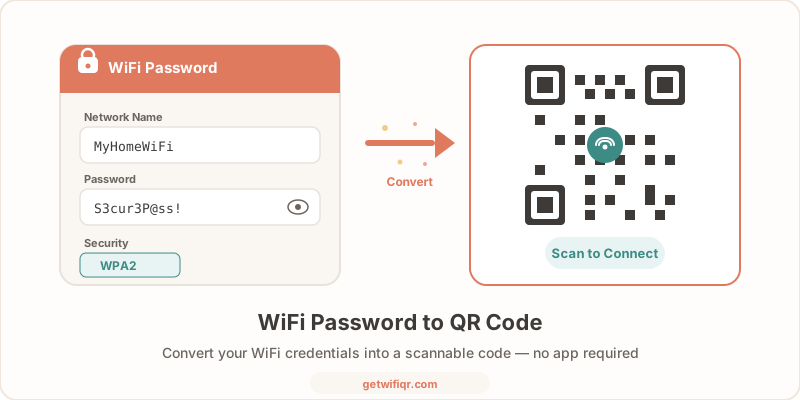
In this guide, you’ll learn what a WiFi password QR code is, how the access-code payload works, three ways to create one, and how to make sure it stays secure.
What Is a WiFi Password QR Code?
A WiFi password QR code is a standard QR code that contains your network credentials — the network name (SSID), password, and encryption type — in an encoded format. When someone scans it with a smartphone camera, their phone reads the data and automatically offers to connect to the network.
This works natively on modern devices:
- iPhone (iOS 11+) — point the default camera at the code
- Android (Android 10+) — use the camera app or Google Lens
No app download required. The phone handles everything.
Behind the scenes, the QR code stores a simple text string in a standardized format:
WIFI:T:WPA;S:YourNetworkName;P:YourPassword;H:false;;- T — encryption type (WPA, WEP, or nopass)
- S — your network name (SSID)
- P — your WiFi password
- H — whether the network is hidden (true/false)
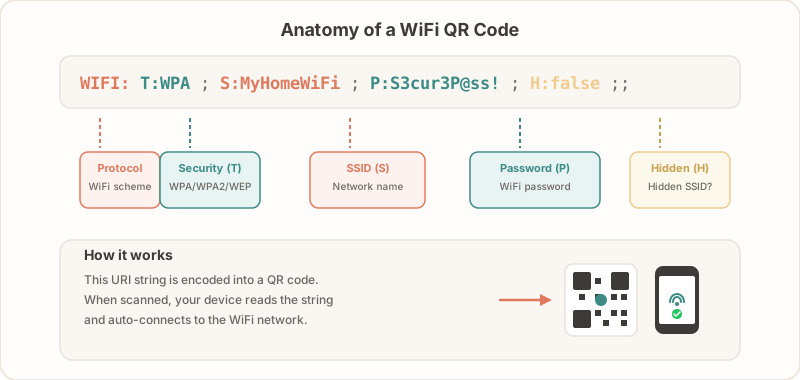
You don’t need to know this format to create a code. But understanding it helps you verify what a QR code contains and confirm it’s legitimate. For a full breakdown of the format, see our WiFi QR code creation guide.
How to Create a WiFi Password QR Code
There are three practical ways to turn your WiFi password into a QR code. We’ll walk through each one.
Method 1: Use GetWiFiQR (Fastest)
The simplest approach is to use a dedicated WiFi QR code generator. Here’s how:
- Go to GetWiFiQR’s free generator
- Enter your network name exactly as it appears on your router (case-sensitive)
- Enter your WiFi password
- Select your encryption type — WPA/WPA2/WPA3 for most modern routers
- Check “Hidden Network” only if your router doesn’t broadcast the network name
- Click Generate — your QR code appears instantly
- Download as PNG (best for printing) or SVG (best for scaling)
That’s it. The entire process takes about 10 seconds.
Your credentials are processed locally in your browser and never sent to any server. You can verify this by disconnecting from the internet and generating a code — it still works.
Method 2: Share from Your Phone’s WiFi Settings
Both iOS and Android now have built-in ways to share WiFi credentials, though the process varies by operating system.
On iPhone (iOS 11+):
iPhones can share WiFi with nearby Apple devices automatically. When another iPhone user tries to connect to your network, a prompt appears on your phone asking if you want to share the password. Tap “Share Password” and they’re connected. This is limited to Apple-to-Apple sharing and requires both devices to have Bluetooth enabled.
To find your password on iPhone, go to Settings > Wi-Fi, tap the info button (i) next to your connected network, and on iOS 16+ tap the hidden password to reveal and copy it. You can then paste it into a QR code generator to create a scannable code.
On Android (Android 10+):
Go to Settings > Network & Internet > Wi-Fi. Tap the gear icon next to your connected network, then tap Share. Your phone generates a QR code on screen that anyone can scan. On some Android versions, you may need to authenticate with your fingerprint or PIN first.
Limitations of the phone method:
- You need to be connected to the network to share it
- The QR code is on-screen only — you can screenshot it, but it’s not ideal for printing
- The process differs across phone brands and OS versions
- No customization options
For a QR code you can print and display permanently, Method 1 is more practical.
Method 3: From Your Router’s Admin Page
Most modern routers display your WiFi credentials in the admin panel. While routers typically don’t generate QR codes directly, you can grab the exact password from the admin page and use it to create a QR code.
- Log into your router’s admin panel — usually at
192.168.0.1or192.168.1.1in your browser - Find the wireless settings section — look for “WiFi,” “Wireless,” or “WLAN” in the menu
- Note the exact SSID and password — copy them to avoid typos
- Check the security type — it will say WPA2, WPA3, or similar
- Use those details in a QR code generator like GetWiFiQR
This method is useful when you’re not sure what your exact password is, or when you want to confirm the SSID spelling and security type before generating a QR code.
How to Scan a WiFi Password QR Code
Scanning a WiFi QR code is straightforward on any modern smartphone:
iPhone: Open the Camera app and point it at the QR code. A notification banner appears at the top of the screen — tap it to join the network. No third-party app needed.
Android: Open the Camera app or Google Lens and point it at the QR code. Tap the WiFi prompt that appears to connect. On some older Android phones, you may need to enable QR scanning in camera settings or use Google Lens instead of the default camera.
Tips for reliable scanning:
- Hold the phone steady, about 6-10 inches from the code
- Make sure the QR code is well-lit with no heavy glare
- The code should be at least 2x2 inches (5x5 cm) for comfortable scanning
- Both printed and on-screen QR codes work — the phone doesn’t know the difference
If the scan succeeds but the connection fails, the most common cause is a mismatched password. Double-check that the password in the QR code matches your current router password exactly. For more troubleshooting steps, see the troubleshooting section in our WiFi QR code creation guide.
Can You Extract the Password from a WiFi QR Code?
Yes. The password is embedded in the QR code’s data, and anyone with a standard QR code reader (not just a WiFi QR scanner) can decode the raw text string and see the credentials.
For example, if you scan a WiFi QR code with a general-purpose QR reader app, you’ll see something like:
WIFI:T:WPA;S:CoffeeShopGuest;P:welcome2024;H:false;;The password is right there in plain text after P:. This is by design — the phone needs to read the password to connect you to the network.
What does this mean for security?
A WiFi QR code is equivalent to writing your password on a card. Anyone who can see or photograph the QR code can extract the password. This isn’t a vulnerability unique to QR codes — it’s the same as any other method of sharing a password visually.
The practical takeaway: treat your WiFi QR code with the same level of care you’d give a printed password. Don’t post it where strangers outside your premises can photograph it. For more on this, read our WiFi QR code security guide.
Where WiFi QR Access Codes Work Best
A WiFi QR access code is most useful when many people need the same network details but should not have to type them:
- Printable signs: Add the QR code, SSID, and written password to a table tent, front desk card, or lobby sign.
- Guest networks: Keep visitors on a separate network and rotate the password without affecting your private devices.
- Router labels: Put a QR code near the router for homes, offices, and rentals where the router label is hard to read.
- Business displays: Use a clean printed code for restaurants, hotels, offices, and Airbnb welcome guides.
Before creating the code, use a router-safe password from the WiFi password generator and confirm whether the network uses WPA, WPA2, or WPA3.
Security Considerations
WiFi QR codes don’t introduce new security risks. They’re a convenient format for sharing credentials you’d share anyway. That said, there are a few things worth doing right.
Use a Guest Network
The single most important step. Set up a separate guest WiFi network on your router and use that network’s credentials for your QR code. This keeps guests isolated from your main network, your files, your printers, and your other devices.
Most routers manufactured in the last decade support guest networks. Check your router’s admin panel under “Guest Network” or “Guest Access.” For a full setup walkthrough, see our guest WiFi best practices guide.
Choose WPA2 or WPA3
Always use WPA2 or WPA3 encryption. Never use WEP (it’s outdated and easily cracked) or an open network. WPA3 is the strongest option if your router supports it — it provides per-session encryption keys and protection against offline brute-force attacks.
Rotate Your Password Periodically
How often depends on your setting:
- Restaurants and cafes: Monthly
- Offices: Quarterly
- Vacation rentals: After each guest checkout
- Home: When you suspect unauthorized access
When you change the password, generate a new QR code and replace the old one. The process takes seconds with GetWiFiQR.
Control Physical Access
Place your QR code where guests can see it, but not where passersby can photograph it from outside. Inside your restaurant, hotel room, or office lobby is fine. Taped to a window facing the street is not.
For creative placement ideas that balance visibility and security, check out our WiFi password display ideas guide.
Common Questions
Does a WiFi QR code show the password?
Not visually. When someone scans the code, their phone reads the credentials silently and connects them to the network. The password isn’t displayed on screen during this process.
However, the password is embedded in the QR code’s data. Someone using a general-purpose QR reader (rather than the phone’s native camera) could decode the raw text and see the password. Treat the QR code the same way you’d treat a printed password.
Can someone steal my password from the QR code?
Anyone who can scan or photograph the QR code can extract the password from it. This is identical to someone reading a password off a printed sign. Mitigate this by using a guest network, placing codes in controlled areas, and changing the password when needed.
Do WiFi QR codes expire?
No. The QR code itself has no expiration. It will keep working as long as your network name and password haven’t changed. If you update your password, generate a new QR code — the old one won’t connect anymore because the stored credentials no longer match.
What if my password has special characters?
A good WiFi QR generator handles special characters automatically. Characters like semicolons, colons, backslashes, and commas are escaped in the encoded data so the QR code works correctly. Just type your password as-is.
Does it work on all phones?
WiFi QR code scanning works natively on iPhone (iOS 11+) and Android (10+). Older phones may need a QR scanner app. The vast majority of smartphones in use today support it without any additional software.
Create Your WiFi Password QR Code
Converting your WiFi password into a QR code takes less than a minute and saves everyone the frustration of typing long passwords. Whether you’re running a restaurant, managing a hotel, hosting guests at your Airbnb, or welcoming visitors to your office, a WiFi password QR code is the simplest way to share access.
Create your free WiFi password QR code now →
Related Articles
- How to Create a WiFi QR Code (Free Step-by-Step Guide) — detailed walkthrough of the creation process
- Are WiFi QR Codes Secure? What You Need to Know — security best practices for sharing WiFi via QR
- WiFi Password Generator for WPA2/WPA3 Routers — create a strong password before making the access code
- WiFi Password Display Ideas for Every Business — creative ways to display your QR code
- Guest WiFi Best Practices for Small Businesses — set up a secure guest network the right way