Sharing a mobile hotspot usually means dictating a password letter by letter while someone squints at their phone keyboard. There is a faster way — a hotspot QR code that people scan to connect instantly.
This guide walks you through finding your hotspot credentials on iPhone and Android, generating a free QR code, and putting it to work at events, while traveling, or anywhere you need to share your connection.
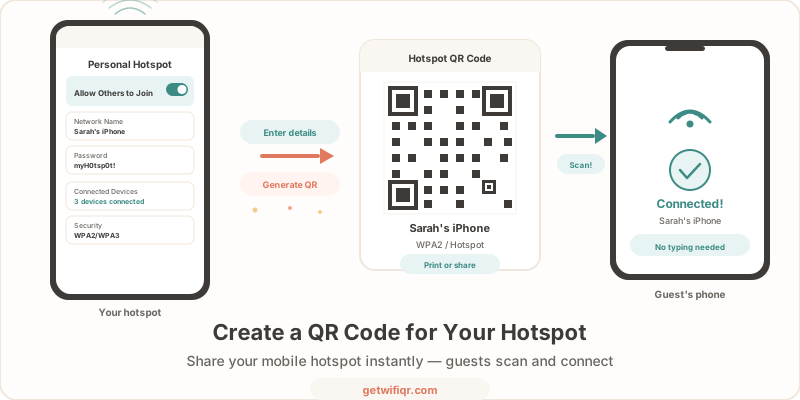
What Is a Hotspot QR Code?
A hotspot QR code is a WiFi QR code that contains your mobile hotspot’s network name and password. When someone scans it with their phone camera, their device connects automatically — no typing required.
It works because a mobile hotspot broadcasts a standard WiFi signal. The same QR code format that works for home routers and business networks works for hotspots too. If you want a deeper look at how WiFi QR codes work under the hood, our WiFi QR code guide covers the technical format.
Step 1: Find Your Hotspot Name and Password
Before you generate a QR code, you need two things: your hotspot’s network name (SSID) and password. Where you find them depends on your phone.
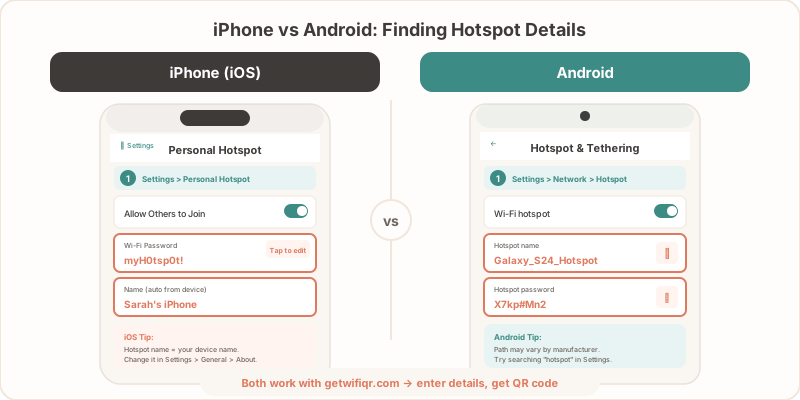
iPhone Hotspot Settings
- Open Settings > Personal Hotspot
- Your network name is your device name — find it under Settings > General > About > Name
- Your hotspot password is shown on the Personal Hotspot screen (tap to reveal it if needed)
Tip: iPhone hotspot names often contain an apostrophe (e.g., “Sarah’s iPhone”). The QR code generator handles special characters automatically, so enter the name exactly as it appears.
Android Hotspot Settings
- Open Settings > Network & Internet > Hotspot & Tethering > Wi-Fi Hotspot (the exact path varies by manufacturer)
- Your hotspot name and password are displayed on this screen
- On Samsung devices, look under Settings > Connections > Mobile Hotspot and Tethering > Mobile Hotspot
Tip: Some Android phones let you customize the hotspot name and security type. For maximum compatibility with the QR code, use WPA2 or WPA3 security (the default on modern devices).
Step 2: Generate Your Hotspot QR Code
Once you have your credentials:
- Go to the free WiFi QR code generator
- Enter your hotspot name exactly as it appears in your phone settings (case-sensitive)
- Enter your hotspot password
- Select WPA/WPA2/WPA3 as the security type
- Click Generate
Your QR code appears instantly. The entire process takes about 15 seconds. Everything is processed locally in your browser — your hotspot password is never sent to a server.
Download the QR code as PNG for quick sharing or printing, or SVG if you need to scale it to any size without losing quality.
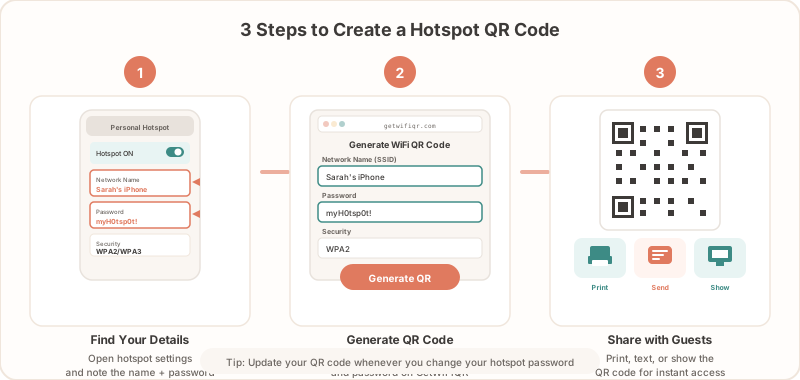
Step 3: Share and Connect
Now that you have your hotspot QR code, there are several ways to use it:
- Show it on your phone screen — open the downloaded image and let others scan directly from your display
- Print it on a card — useful for events, classrooms, or group trips
- Send it digitally — text or email the QR code image to people who need access
- Display it on a sign — set up a small printed card at your desk or table
When someone scans the code, their phone prompts them to join your hotspot network. They tap Connect, and they are online. It works on iPhone (iOS 11+) and Android (10+) using the built-in camera app — no special scanning app required.
Where Hotspot QR Codes Are Most Useful
Hotspot QR codes shine in situations where you are temporarily sharing a mobile connection with a group.
Events and Conferences
Running a pop-up booth or outdoor event with no venue WiFi? Turn on your phone’s hotspot and print a small QR code for the table. Attendees scan and connect without interrupting your conversation. This works particularly well for trade shows, farmers markets, and outdoor festivals where the venue has no dedicated internet infrastructure. Print the code on your event badge or tent signage so people can connect on their own. For more ideas on event connectivity, see our event WiFi guide.
Travel and Group Trips
When you are abroad with a local data SIM, sharing your hotspot with travel companions saves everyone from buying separate plans. Print the QR code before you leave, or keep it in your phone’s photo gallery for quick access. This is especially handy during airport layovers, road trips, or group tours where people frequently reconnect throughout the day. Instead of re-sharing the password at each stop, everyone just scans the same code again.
Co-Working and Shared Spaces
Freelancers working from cafés or shared desks can share a hotspot QR code instead of repeatedly reading out the password when someone new sits down. Place a small printed card next to your laptop with the QR code and a note like “Scan to connect — please limit streaming.” It saves you the interruption and lets collaborators get online without asking.
Classrooms and Workshops
Teachers and workshop leaders can display a hotspot QR code on a slide or printout so participants connect in seconds at the start of a session. This eliminates the usual five minutes of “What is the password?” disruption at the beginning of every class. For recurring sessions, print the code on your syllabus or workshop handout so students always have it.
Tips for a Reliable Hotspot QR Code
- Keep your hotspot name and password stable. The QR code is only valid for the exact credentials it was generated with. If you change either one, you will need a new code.
- Check your device limit. Most phones support 5–10 simultaneous hotspot connections. If you expect more people, consider a dedicated portable hotspot device.
- Monitor your data usage. Hotspot data counts toward your mobile plan. If you are sharing with a group, keep an eye on consumption — especially with video calls or large downloads.
- Use a strong password. A hotspot QR code makes connecting easy, but it also makes your password easy to extract. Use a password you are comfortable sharing, and change it afterward if needed.
- Test the code before the event. Have someone scan it with a different phone to confirm it connects correctly. A quick test avoids troubleshooting in front of a group.
Create Your Hotspot QR Code Now
Ready to stop spelling out passwords? Enter your hotspot details and have a scannable code in seconds. It is free, requires no signup, and works for any mobile hotspot — iPhone, Android, or portable device.
Create your free WiFi QR code →
Related Articles
- How to Create a WiFi QR Code — The complete guide to WiFi QR codes, including the technical format and advanced options.
- WiFi QR Code Security: What You Need to Know — Best practices for keeping your network safe when sharing access via QR code.
- WiFi Password QR Code — How to turn any WiFi password into a scannable QR code for home, office, or business use.