Someone asks for your WiFi password. You know it is saved on your iPhone somewhere, but you have never actually looked it up. You end up flipping the router over to read the sticker on the back.
There is a faster way. Your iPhone stores the password for every network it has joined, and starting with iOS 16, you can see it, copy it, and hand it over in seconds — no router required.
Here is exactly how to do it.
How to Share WiFi Password on iPhone
These steps are from an iPhone running iOS 18. The screens look the same on iOS 16 and iOS 17.
Step 1: Open Settings and tap Wi-Fi
Open the Settings app. Tap Wi-Fi. You will see your connected network at the top with a checkmark next to it, and a list of other available networks below.
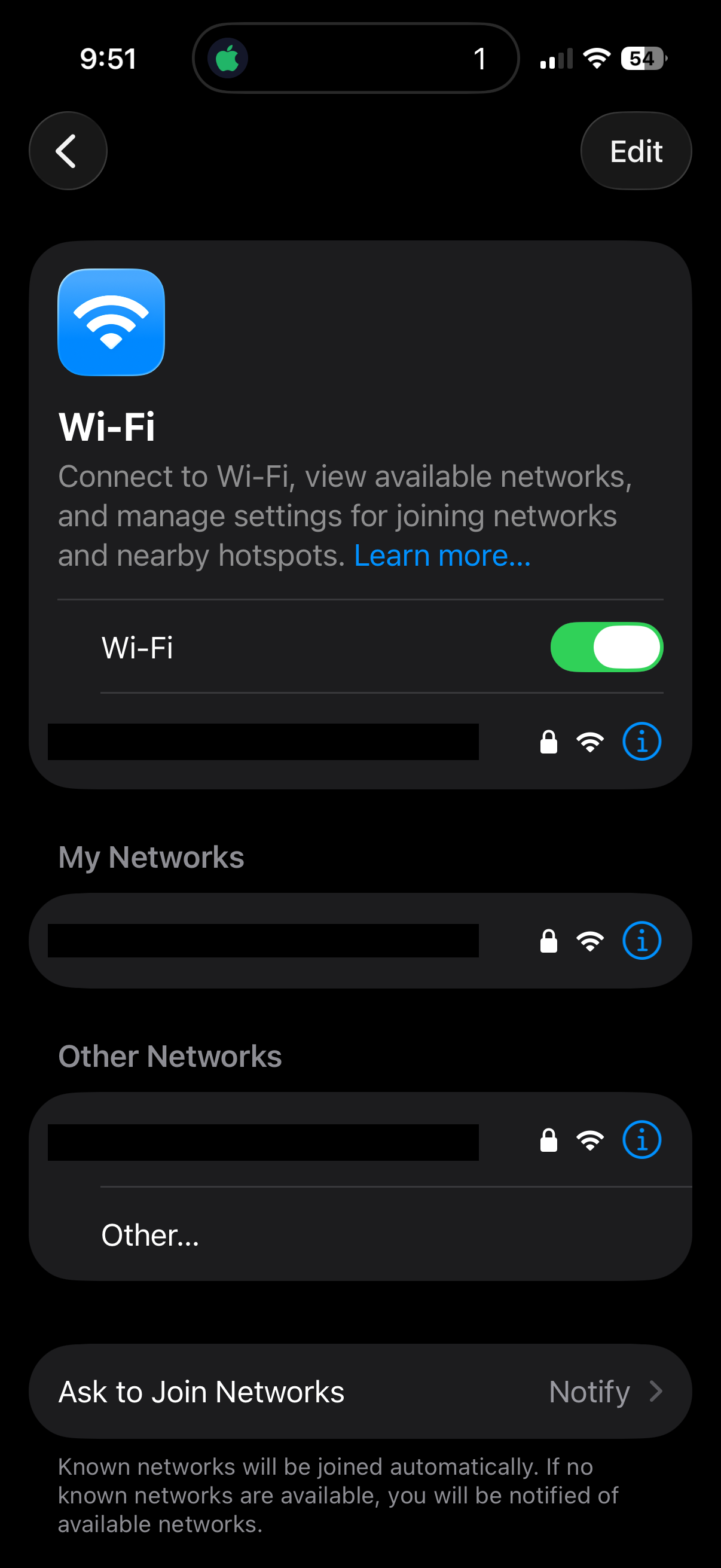
Step 2: Tap the (i) button next to your network
Tap the small (i) icon to the right of your connected network name. This opens the network details screen, where you can see Auto-Join, Private Wi-Fi Address, and — most importantly — the Password row.
The password is hidden behind dots by default.
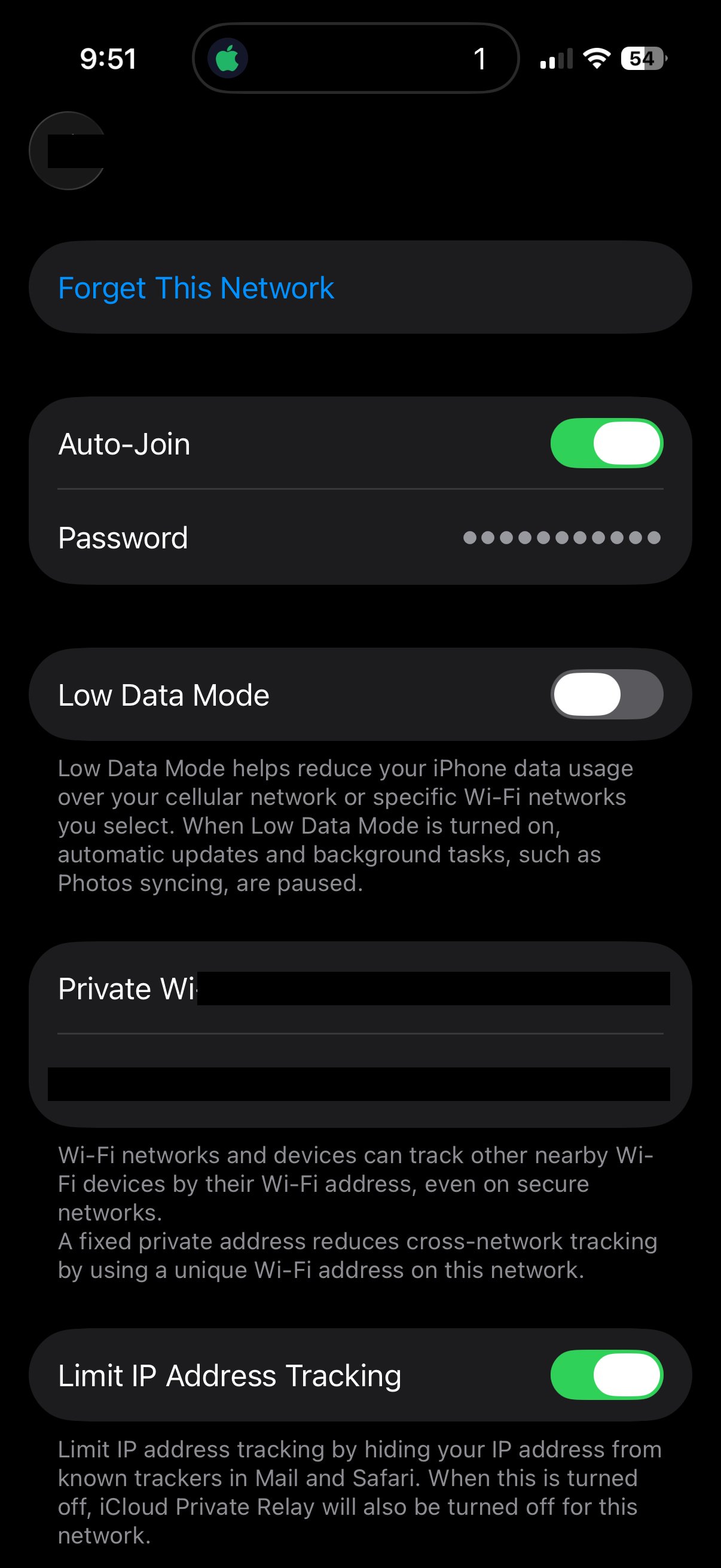
Step 3: Tap the Password row to reveal it
Tap the Password row. Your iPhone will authenticate you with Face ID or Touch ID, then reveal the password in plain text. A Copy button appears right there — tap it and the password is on your clipboard, ready to paste into iMessage, WhatsApp, or any other app.
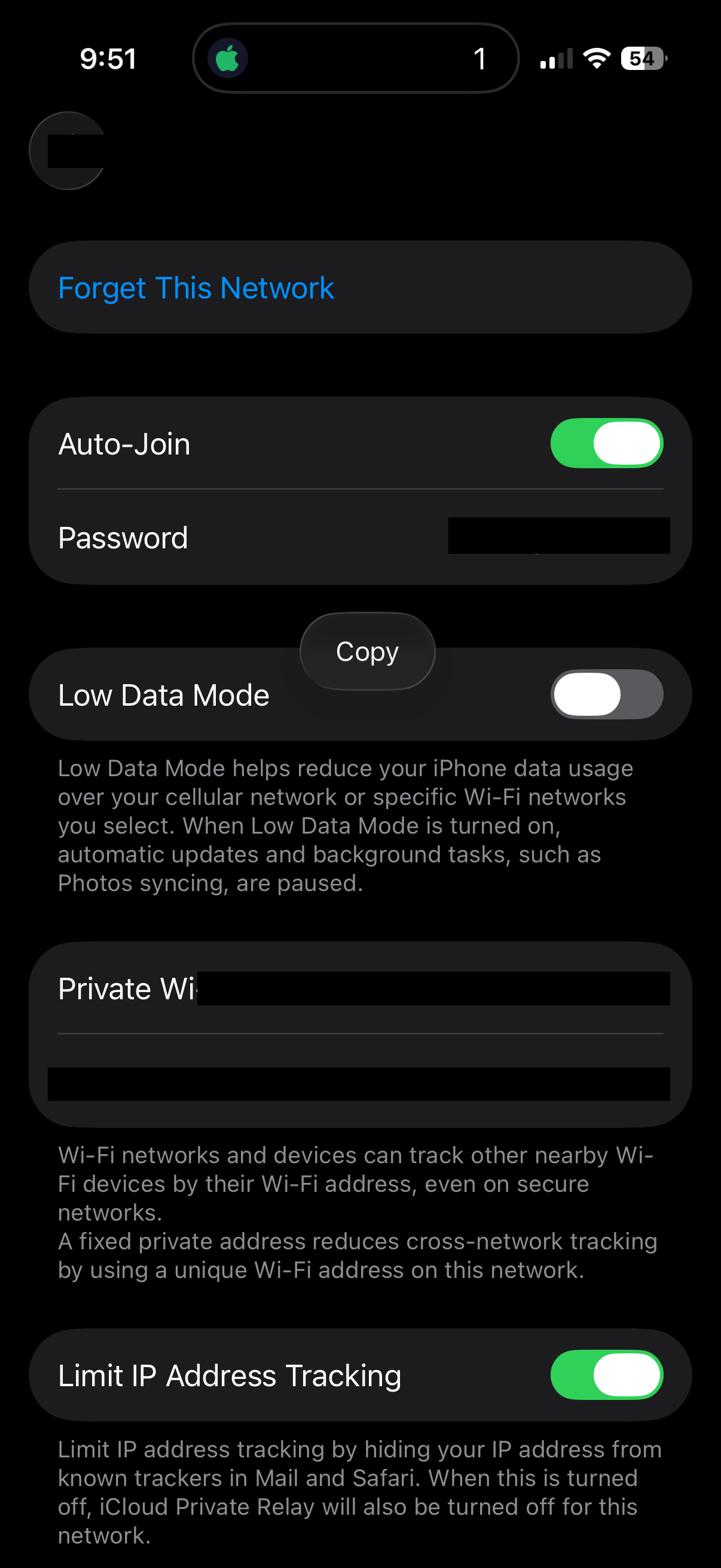
You can also just hold up your screen and let the other person type what they see. Either way, three taps from Settings to a shared password.
The Automatic Share Password Popup
If the other person also has an Apple device, there is an even easier path — and it requires zero taps from the person sharing.
Here is how it works:
- Both devices need Bluetooth and Wi-Fi turned on.
- Your Apple ID email must be saved in the other person’s Contacts, and theirs must be in yours.
- Your iPhone must be unlocked and connected to the WiFi network they are trying to join.
When all three conditions are met, the moment the other person selects your network from their Wi-Fi list, a popup appears on your iPhone asking “Share Your Wi-Fi Password with [Name]?” You tap Share Password, and they are connected. No one ever sees or types the password.
This is the smoothest way to share WiFi between Apple devices, but it only works in the Apple ecosystem. If the other person has an Android phone, use the copy-and-paste method from the steps above — or better yet, give them a QR code to scan. Our Android WiFi sharing guide covers their side of things.
Sharing WiFi With Guests at Your Business
The methods above work great for one-off situations — a friend at your house, a colleague borrowing your hotspot for a meeting.
But if you run a restaurant, cafe, Airbnb, or hotel, you do not want to pull out your phone and copy-paste a password every time a guest asks. You want something on the wall that handles it for you.
A printed WiFi QR code does exactly that. You create it once, print it, frame it or laminate it, and put it on the table or by the front desk. Guests scan it themselves without interrupting your staff. No one has to recite a password. No one has to wait.
GetWiFiQR generates a print-ready WiFi QR code in seconds. Enter your network name, password, and security type — the generator handles the rest. Free to use, no account needed.
If you do not want guests on your main network, pair the QR code with a separate guest network on your router. That way visitors get internet access without touching the same network as your point-of-sale system or security cameras. Our guest WiFi best practices guide covers how to set that up.
Now you know two ways to share your WiFi password from an iPhone — tap and copy for anyone, or the automatic popup for fellow Apple users. No more flipping the router.
For a look at how the other side works — scanning a WiFi QR code to connect — see our WiFi QR code scanning guide.