To find your Samsung WiFi QR code, open Settings > Connections > Wi-Fi, choose the settings icon beside the connected network, then tap QR code. On other Android phones, look for Share in the network details.
The guest scans the code and accepts the join prompt. You do not need a separate generator for this one-off sharing task. For a reusable card at a reception desk, café or guest room, you can create a printable WiFi QR code instead.
Samsung WiFi QR Code
Connect your Galaxy phone to the WiFi network you want to share first. Then:
- Open Settings > Connections > Wi-Fi.
- Select the settings icon next to the connected network.
- Choose QR code and show it to the guest’s device.
- Have the guest scan and confirm the connection prompt.
These steps follow Samsung’s WiFi sharing instructions. Check your model’s support information if its menus differ.
Sharing your phone’s mobile data? Use the hotspot QR code guide instead. Router WiFi sharing and Mobile Hotspot are separate tasks.
The Android Share Button on Other Phones
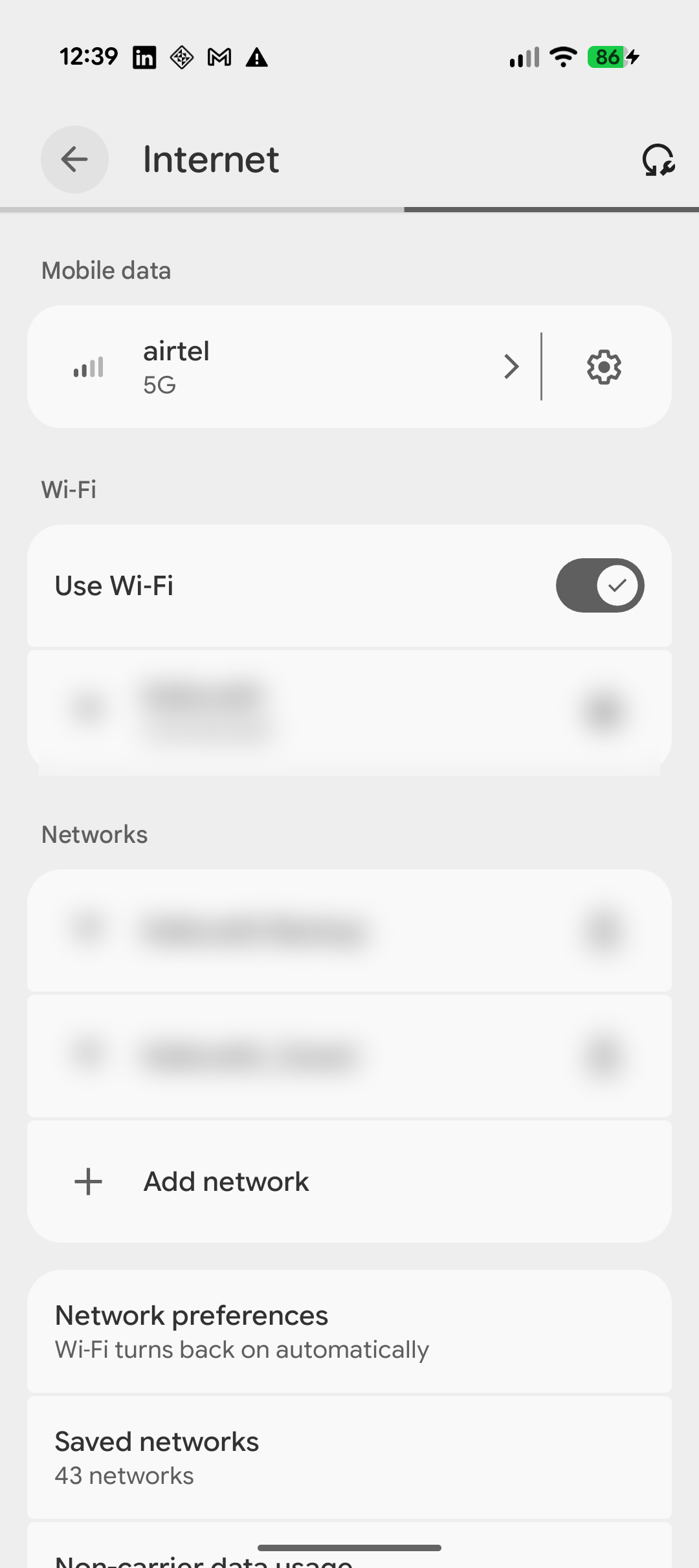
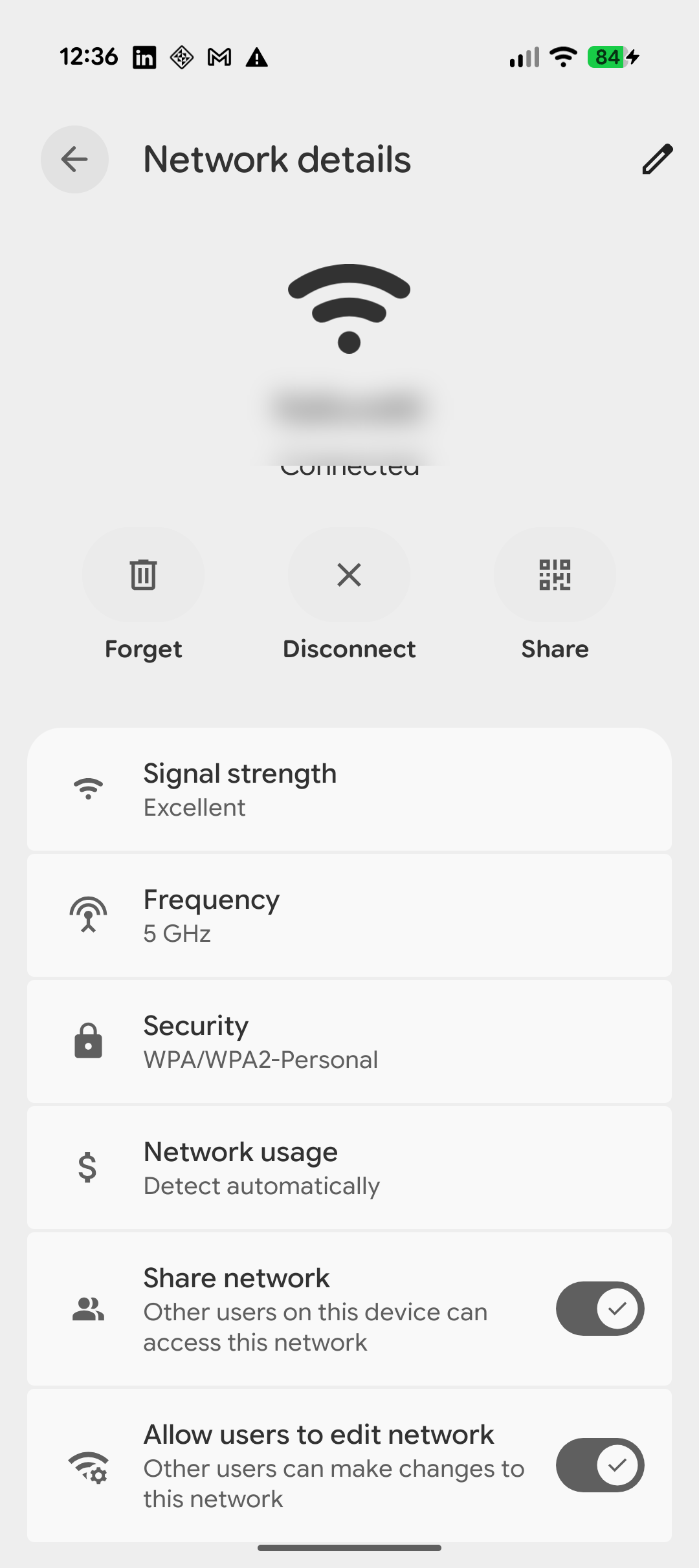
Google’s Android WiFi help describes a Share option under your WiFi network. Depending on the device, the route is Settings > Network & internet > Internet, followed by the connected network and Share. Your phone may ask you to unlock before displaying credentials.
These examples show an Android sharing screen. Samsung uses the QR code menu described above. Screens vary by model and software.
1. Open the Connected Network
Choose your current network or its settings icon.
2. Choose Share
Look for Share, Share network or the QR option in the network details.
3. Let the Guest Scan
Show the complete code. The guest can try their camera or the QR scanner available in their WiFi settings, then follow the join prompt.
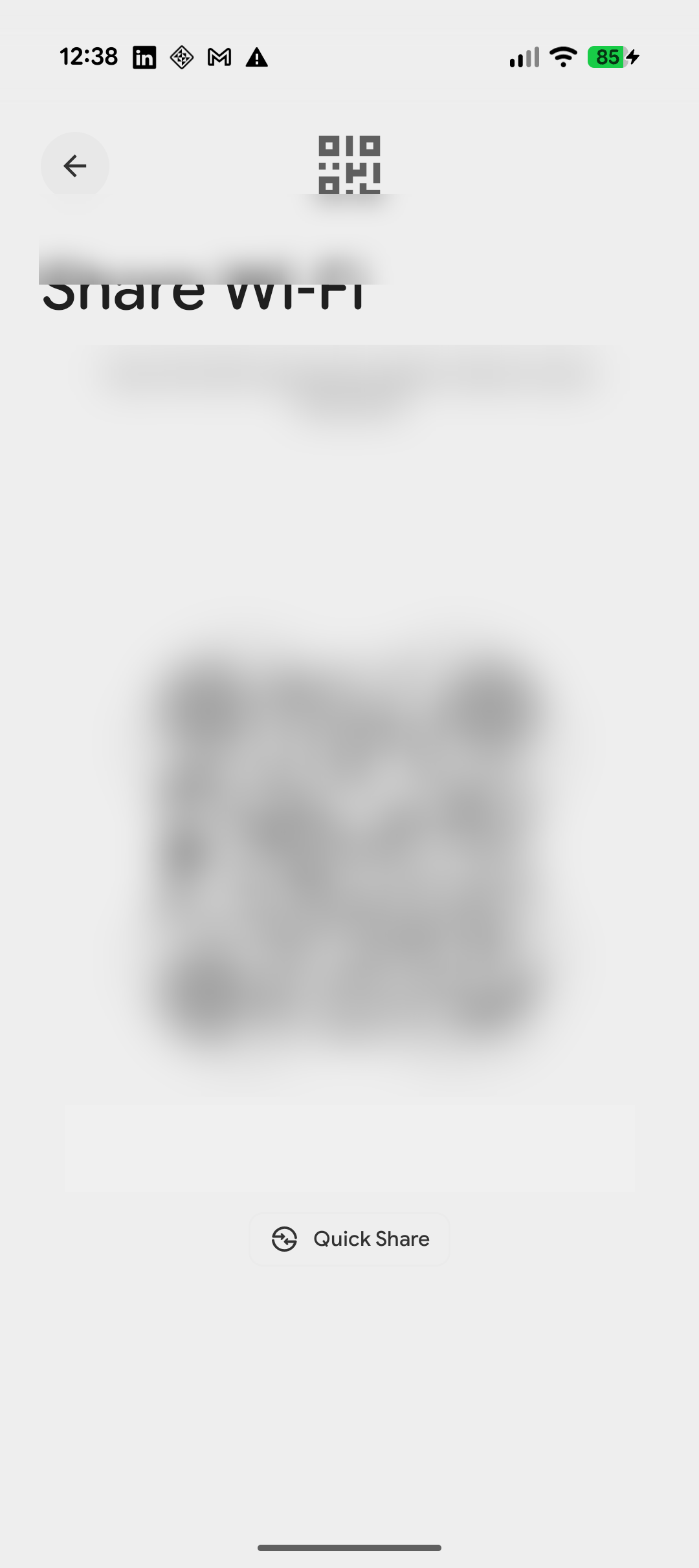
Some phones display the written password alongside the QR code; others use a different layout. A hidden password field does not make the QR image secret. The image itself encodes the connection details.
If the QR Code or Share Button Is Missing
| What you see | Next step |
|---|---|
| Only a list of nearby networks | Connect to the intended network and open its details. |
| No button called Share on Samsung | Look for QR code beside the connected network’s settings. |
| The menu differs from these examples | Check the manufacturer’s instructions for your model and software. A missing button alone does not identify the Android version. |
| You know the credentials but cannot find a sharing option | Enter the authorized network name and password into the WiFi QR generator. |
| You do not know the credentials | Ask the network owner or administrator for the correct access method. A generator cannot discover the password for you. |
If the guest’s camera recognizes the code but they cannot join, confirm that the network name and password have not changed. If manual connection fails too, address the network problem first. Our WiFi connection guide covers the receiving side.
Show Once or Print for Guests?
| Situation | Useful option |
|---|---|
| A friend needs WiFi while you are together | Show the built-in QR code on your phone. |
| Visitors need access while staff are busy | Put a tested QR code on a visible guest card or sign. |
| You run a holiday rental | Use a reusable Airbnb WiFi card with clear joining instructions. |
| You are sharing a phone’s cellular connection | Use its mobile hotspot settings. |
For a printed card, enter your network details in the generator, choose the available design and export options, and test the final image on a second device. The print guide covers placement and readability. Premium customization is shown separately in the product.
Create a printable WiFi QR code →
For business guests, configure a guest network on your router before sharing it. A QR code does not create network isolation or remove a captive portal. See guest WiFi setup guidance and confirm your router’s settings.
Can Someone Read the Password From the QR Code?
Yes. A WiFi credential code carries the network details required to connect. Anyone who can read that code may also be able to decode its password, even if the scanning app shows only a Join button.
Share the image only where access is intended. After changing the password, replace saved or printed QR codes. Learn more in the WiFi QR security guide.