Guest WiFi is no longer a nice-to-have. Customers walk into your business, sit down, and reach for their phone before they even look at a menu. If there’s no WiFi — or worse, the WiFi is confusing and slow — that’s a problem.
Most small businesses set up WiFi once and forget about it. That’s understandable — you’re busy running a business, not managing a network. But a little attention goes a long way. This guide covers how to set up guest WiFi that’s secure, easy for visitors to use, and low-maintenance for you.
Why Guest WiFi Matters More Than You Think
People expect WiFi. That’s true whether you run a cafe, a restaurant, a dental office waiting room, or a hotel lobby (see our hotel guest WiFi setup guide for hospitality-specific advice). It’s become as expected as clean bathrooms and decent lighting.
Free WiFi keeps people around longer. A customer who connects to WiFi and settles in for a second coffee or browses the dessert menu is spending more than the person who grabs their order and leaves. For service-based businesses — hair salons, auto repair shops, medical offices — WiFi makes the wait feel shorter. That translates to happier customers and fewer complaints.
It’s also a real competitive differentiator, especially for cafes and restaurants. When someone’s deciding between two coffee shops, “free WiFi” on your Google listing can tip the scale. And on the flip side: few things generate one-star reviews faster than a business that advertises WiFi but makes it painful to connect. If a guest has to ask three times for a password that doesn’t work, you’ve already lost them.
Separate Your Guest Network from Your Business Network
This is the single most important thing you can do. If you take one piece of advice from this entire guide, let it be this.
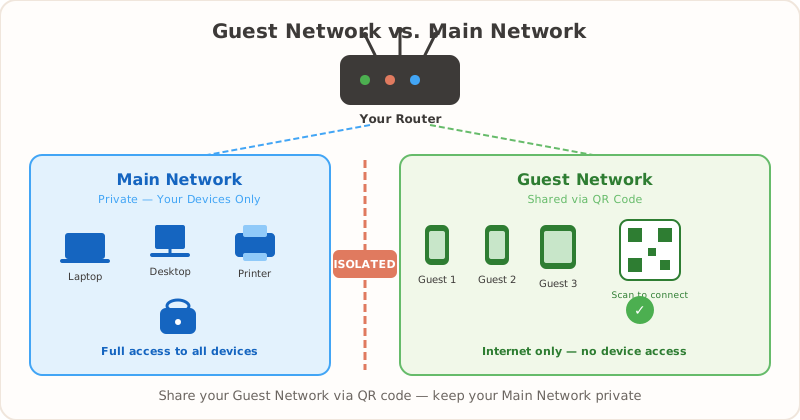
Your point-of-sale system, inventory software, printers, security cameras, and employee devices should not be on the same network your guests use. A shared network means a guest’s compromised device could potentially access your business systems. That’s not a theoretical risk — it’s a real one.
The good news: most modern routers have a “Guest Network” feature built in. It’s usually a toggle in your router settings. Enabling it creates a separate network that shares your internet connection but keeps guests isolated from your internal devices.
While you’re in there, set a bandwidth limit on the guest network. You don’t want one person streaming a 4K movie to eat up all your bandwidth while everyone else can barely load a webpage. Most routers let you cap guest network speed — setting it to 50-70% of your total bandwidth is a reasonable starting point.
If you’re not sure how to do this, search “[your router brand] guest network setup.” Netgear, TP-Link, ASUS, and most other brands have step-by-step instructions. It typically takes under 10 minutes.
Choose a Password That’s Secure but Shareable
Here’s where most businesses get it wrong. They either use a password so complex that no one can type it, or they use something so obvious that it defeats the purpose of having a password at all.
You want something that’s strong enough to prevent random passersby from leeching your bandwidth, but easy enough that a guest can type it on a phone keyboard — or better yet, connect via a QR code so they don’t have to type anything.
Good password: “BlueMugCoffee2026” — clear, pronounceable, easy to communicate if someone asks verbally.
Bad password: “xK9#mZ!2qR” — impossible to relay across a noisy room, guaranteed to cause typos.
Also bad: “password” or “12345678” — these invite freeloaders and abuse.
Change your guest WiFi password on a regular schedule. For high-traffic locations like busy cafes, monthly is ideal. For quieter spots like a small office waiting area, quarterly works fine. When you change the password, generate a fresh QR code and reprint your sign. The whole process takes about 30 seconds with a free QR code generator.
Make Your WiFi Easy to Find and Connect
You’d be surprised how many businesses have WiFi but make it nearly impossible for guests to actually use. The password is scrawled on a tiny piece of paper behind the cash register, or a staff member rattles it off so fast you’d need a court stenographer to catch it.
Here are your display options, ranked from best to worst:
-
WiFi QR code — Guests scan it with their phone camera and connect instantly. No typing, no spelling errors, works regardless of what language your guest speaks. Create one free in under a minute.
-
Printed sign with the network name and password clearly displayed. Readable from a reasonable distance. Use a large, clean font.
-
Verbal — A staff member tells the guest the password. This works in a pinch, but it interrupts workflow and doesn’t scale. If you have more than a handful of guests per day, this gets old fast.
QR codes have a clear edge over written signs for several reasons: they eliminate typos, they look clean and professional, and they work for international visitors who might not read your language. We go deeper on this in our WiFi QR code vs. manual password comparison.
For more creative display options, browse our WiFi password display ideas for every business type. As for where to put your QR code or sign: table tents work great for restaurants and cafes. A card at the front desk or check-in counter works for offices and hotels. Wall-mounted signs near seating areas catch people’s attention. Welcome books are a solid option for Airbnb and vacation rentals. For tips on sizing, materials, and placement, check out our printing guide.
Keep an Eye on Your Network
Setting up guest WiFi isn’t a “set and forget” situation. You don’t need to obsess over it, but a quick check every now and then helps.
Log into your router’s admin panel occasionally and look at connected devices. Most routers show a list of everything currently connected. If you see 47 devices connected and you only have 10 customers, something’s off. This could be neighboring businesses or apartments piggybacking on your network.
If your router supports per-device bandwidth limits, enable them. This prevents any single device from hogging the connection. A per-device cap of 10-15 Mbps is enough for web browsing, email, and video calls — which covers what 95% of your guests need.
Watch for unusually high data usage. A sudden spike could mean someone is torrenting files or running a server off your network. Neither is something you want.
For high-traffic locations with 100+ daily guests — think airport lounges or large event spaces — a captive portal (the “agree to terms” page you see at hotels) might make sense. But for the typical small business, a password-protected guest network with a QR code is more than enough. Don’t overcomplicate it.
A Quick Note on Legal Stuff
This isn’t legal advice, and you should consult a professional for your specific situation. That said, here are a few things worth thinking about.
Content filtering: If your business serves families — think pediatric offices, family restaurants, or libraries — consider enabling content filtering on your guest network. Most routers have a basic filter built in, or you can use a DNS-based service like OpenDNS or CleanBrowsing. It takes a few minutes to set up and helps prevent inappropriate content from being accessed on your network.
Terms of use: Even a basic sign that says “By connecting to our WiFi, you agree to use this network responsibly” gives you a baseline layer of protection. It doesn’t need to be a 10-page legal document. A single sentence on your WiFi sign is a reasonable starting point.
Network separation: If you’ve followed the advice earlier and separated your guest and business networks, you’ve already addressed the biggest risk. Your customer data, payment systems, and internal files stay on a network guests can’t touch.
For a deeper dive into the security side of WiFi QR codes specifically — including what information is encoded and what isn’t — read our WiFi QR code security guide.
Guest WiFi Checklist
Before you move on with your day, run through this quick checklist:
- Separate guest network enabled
- Bandwidth limits set
- Password is strong but shareable
- WiFi QR code or sign displayed prominently
- QR code tested on iPhone and Android
- Password change schedule set (monthly/quarterly)
- Content filtering enabled (if serving families)
- Business devices on a separate network
If you can check off most of these, you’re ahead of the vast majority of small businesses. Your guests get a smooth, reliable WiFi experience, and you get peace of mind knowing your business network is protected.
Need a WiFi QR code for your business? Create one free — it takes about 30 seconds, and your guests will thank you.
Related Articles
- Hotel Guest WiFi Setup: Best Practices for 2026 — WiFi QR code placement and management for hotels
- WiFi Password Display Ideas for Every Business — creative ways to display your WiFi credentials
- Are WiFi QR Codes Secure? What You Need to Know — keep your network safe while offering convenient guest access