Hotel wireless network setup is one of the most visible parts of the guest experience. WiFi is mentioned in hotel reviews both positively and negatively. You can have beautiful rooms, a great location, and friendly staff, but a frustrating WiFi connection process will still land you a three-star review.
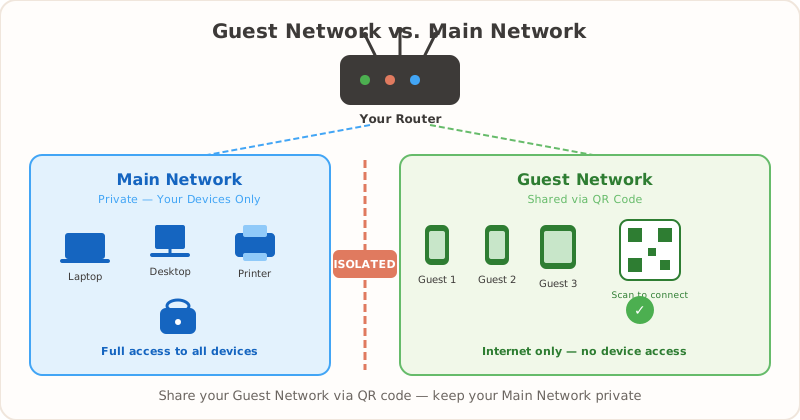
Here’s how to set up hotel guest WiFi so it works well and causes zero friction: isolate guest traffic, place QR codes where guests need them, give the front desk a simple script, and rotate passwords without reprinting chaos. For more on securing your guest network, check out our guest WiFi best practices.
WiFi Is Now a Top-3 Guest Expectation
This isn’t 2015 anymore. WiFi has moved from “nice to have” to “non-negotiable” for nearly every guest who walks through your door.
Business travelers need reliable connectivity for video calls, email, and file sharing. A dropped connection during a client presentation is the kind of thing that gets mentioned by name in a review. Families stream movies and shows in the evenings — it’s how kids wind down after a long day of sightseeing, and parents aren’t going to burn through their mobile data for it. Remote workers, an increasingly large segment, may spend entire days connected to your network. They’re choosing hotels partly based on WiFi reliability.
WiFi complaints show up in reviews more than almost any other amenity. And here’s the uncomfortable truth: a poor WiFi experience affects your ratings even if everything else is perfect. Guests expect it to work the way it does at home — fast, stable, and easy to connect to. When it doesn’t, it colors their entire stay.
The good news is that a lot of the friction isn’t about bandwidth or router hardware. It’s about the connection process itself.
The Front Desk WiFi Problem
If you run or manage a hotel, you already know this scene. A guest walks up to the front desk: “What’s the WiFi password?” Your staff answers. The guest walks away, types it in wrong, comes back. “Can you spell that again?” Multiply this by hundreds of guests per day at a busy property, and you’ve got a real time sink.
It gets worse. Guests lose the little card or slip of paper they got at check-in. International travelers face language barriers when passwords are spelled out verbally — is that an uppercase I or a lowercase L? A 1 or an l? The check-in process itself takes longer when staff have to walk guests through connecting.
None of this is anyone’s fault. It’s a systems problem. And it’s completely solvable.
WiFi QR Codes: The Simple Fix
A WiFi QR code encodes your network name and password into a scannable image. When a guest points their phone camera at it, their device reads the credentials and prompts them to connect automatically. No typing, no spelling, no back-and-forth at the front desk.
This works on all modern smartphones. iPhones running iOS 11 or later handle it natively through the camera app. Android phones on Android 10 and later do the same, either through the camera or Google Lens. No special app is needed — the phone’s built-in camera does the work.
The setup is a one-time effort. You generate the QR code once, print it, and it works until you change your password. That’s it.
You can create one for free in under a minute. Enter your network name, password, and security type, and you’ll have a downloadable QR code ready to print.
Where to Place WiFi QR Codes in Your Hotel
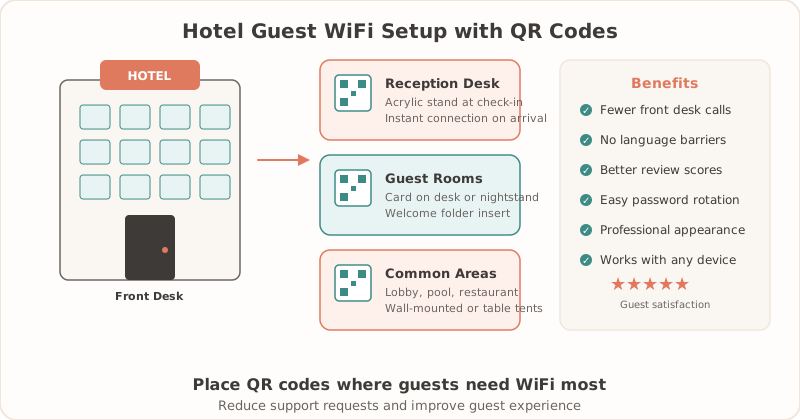
Generating the QR code is the easy part. Placement is where you make or break the guest experience. The goal is to put the code exactly where guests need it, right when they need it.
Lobby signs. Put a larger QR code near the front desk and lounge seating so guests can connect before they reach their room. This reduces immediate password questions during check-in.
Room key card sleeves or envelopes. Guests see these the moment they check in. It’s the first thing they hold, and it’s the first moment they’ll want to connect. If you can only do one placement, do this one.
Bedside tent cards. Put one on each nightstand. Guests settling into their room will reach for their phone almost immediately. Having the QR code at arm’s reach from the bed means they can connect without getting back up.
In-room guest directory or binder. If your property still uses a physical guest binder, the WiFi QR code belongs on the first or second page. Not buried in the back next to the room service menu.
Lobby and reception area. A larger format sign or framed QR code in the lobby handles guests who want to connect to the common area network before they even get to their room. This is also useful for visitors who aren’t staying overnight — meeting attendees, restaurant guests, or people waiting in the lounge.
Conference and meeting rooms. If you run a separate conference network (and you should — more on that below), each meeting room needs its own visible QR code. Event organizers will thank you.
Pool, gym, and common areas. Laminate these. They’ll get wet, touched, and moved around. A laminated tent card or a sign behind acrylic holds up well.
Elevator signage. If space allows, a small QR code with “Scan for WiFi” in the elevator is a nice touch. Guests have a few seconds with nothing to do — might as well let them connect.
For more creative display formats beyond QR codes, see our WiFi password display ideas. One general tip: place QR codes at eye level or on flat surfaces where guests naturally look. Behind-the-door placements get missed almost every time. Think about where people’s eyes and hands go when they enter a space.
Hotel WiFi Setup Checklist
| Setup item | What to do | Why it matters |
|---|---|---|
| Guest network isolation | Keep guests off staff, POS, booking, and camera networks | Protects internal hotel systems |
| Lobby sign | Place a large QR code near reception and lounge seating | Reduces front-desk password questions |
| Room cards | Put QR codes on key sleeves, nightstand cards, or room directories | Gives guests WiFi at the moment they need it |
| Rotating passwords | Change guest credentials monthly or quarterly, then regenerate cards | Keeps old access from spreading indefinitely |
| Front-desk script | ”Scan this code with your camera, or type the password below it.” | Keeps instructions consistent across staff |
| Printed QR placement | Use high-contrast PNG or SVG files in holders that are easy to swap | Keeps scans reliable after password changes |
Managing Multiple Networks
Most hotels run at least two networks: one for guests and one for staff. Larger properties often add more — a conference network, a VIP floor network, or separate networks for common areas like the pool deck.
This is good practice for both performance and security. Guest traffic shouldn’t compete with your point-of-sale systems or booking software. And you definitely don’t want guests on the same network as your internal tools. For a deeper look at keeping your networks secure, see our WiFi QR code security guide.
Create a separate QR code for each guest-facing network. Label them clearly: “Guest WiFi,” “Conference Room WiFi,” “Pool Area WiFi.” Guests shouldn’t have to guess which one to use.
Keep your staff and admin networks off QR codes entirely. Those credentials should be shared internally through your own channels, not printed on cards that anyone could scan.
If you’re managing three or more guest-facing networks, it helps to keep a simple spreadsheet or document tracking which QR code goes where, what network it connects to, and when it was last updated. This saves confusion when passwords rotate.
How to Create Hotel WiFi QR Codes
The process takes about a minute per network. Here’s the walkthrough:
- Go to the free WiFi QR generator.
- Enter your guest network name exactly as it appears (this is case-sensitive).
- Enter the password.
- Select your security type. For most modern hotel networks, this is WPA/WPA2/WPA3.
- Click generate.
You can download the QR code as a PNG for standard printing. If your design team wants to embed it into branded materials — room cards, tent cards, signage templates — download the SVG version instead. It scales to any size without losing quality.
For print-ready output at specific sizes (table tent, A4 poster, or custom dimensions), Pro features include PDF export and size presets that save time when you’re printing for multiple rooms and locations.
If you want the full detailed walkthrough, our step-by-step guide covers every option. And for advice on paper types, sizing, and lamination, the printing guide has you covered.
When the Password Changes
Password changes are the one moment where QR codes require a bit of coordination. But it’s manageable if you plan for it.
First, generate a new QR code. This takes about 30 seconds — same process as before, just with the new password. Then coordinate with housekeeping for room-by-room replacement. If you’re using tent cards or slip-in holders, this is a quick swap during regular room turnover.
For lobbies and common areas, swap signage during low-traffic hours. Early morning or late evening works well. You don’t want guests scanning an old code while you’re mid-replacement.
Here’s a practical question worth asking: how often do you actually need to change your guest WiFi password? For most properties, quarterly is fine. Some hotels change monthly, which is reasonable for higher-security environments. But changing weekly creates a lot of unnecessary reprinting and confusion. Find a cadence that balances security with practicality.
One tip that saves a lot of hassle: use a laminated holder or acrylic stand with a slip-in card. When the password changes, you print new cards and slide them in. No re-laminating, no replacing frames. It takes seconds per unit.
Measuring the Impact
Once your QR codes are in place, it’s worth tracking whether they’re actually making a difference. You don’t need fancy analytics for this — informal tracking works fine.
Start by noting how many WiFi-related questions your front desk gets per shift. Do this for a week before you roll out QR codes, then check again a few weeks after. Most properties see a noticeable drop. Some report cutting WiFi inquiries by half or more.
Monitor your online reviews. Look specifically for mentions of WiFi difficulty — phrases like “couldn’t connect,” “hard to find the password,” “had to call the front desk for WiFi.” A reduction in these comments is a clear signal.
Ask your housekeeping team if the tent cards are getting noticed. If guests are picking them up, moving them closer to the bed, or leaving them propped up on the desk, that’s a good sign they’re being used. If the cards are untouched in the same spot every day, you might need to adjust placement.
The ultimate goal is WiFi that “just works.” You want it to be so seamless that guests never think about it. No mention in reviews, no questions at the front desk, no friction at all. That’s the benchmark.
Ready to upgrade your hotel’s WiFi experience? Create free WiFi QR codes for your property — it takes less than a minute per network.
See our dedicated hotel WiFi QR guide for more hospitality-specific tips and setup advice.
Related Articles
- Guest WiFi Best Practices for Small Businesses — foundational guide to setting up secure, easy guest WiFi
- WiFi Password Generator for WPA2/WPA3 Routers — create router-safe guest passwords
- Are WiFi QR Codes Secure? What You Need to Know — understand guest network and printed-code risks
- Printable WiFi QR Templates — prepare room cards and table signs
- Print WiFi QR Code: Size, Material & Placement Guide — choosing the right size, material, and placement for your printed QR codes
- How to Create a WiFi QR Code (Free Step-by-Step Guide) — generate your hotel WiFi QR code in under a minute