A hotspot QR code shares your phone’s hotspot name and password so another device can join without typing them. You may already have a QR code in your hotspot settings. If you need a downloadable copy, you can also create one from your hotspot credentials.
Already know your hotspot name and password? Create a hotspot QR code →
The code shares access; it does not turn on your hotspot, provide mobile data or bypass a carrier restriction. Keep the hotspot active and nearby while the other device connects.
Choose Your Phone and Task
| What you want to do | Start here |
|---|---|
| Show a Samsung Galaxy hotspot QR code | Use Samsung’s built-in option |
| Share an iPhone’s mobile connection | Find the iPhone hotspot details |
| Use another Android phone or a portable hotspot | Find the hotspot settings |
| Save a reusable code to show or print | Create a downloadable QR code |
| A code scans but the connection fails | Troubleshoot the connection |
Samsung Hotspot QR Code
On supported Galaxy devices:
- Open Settings > Connections > Mobile Hotspot and Tethering.
- Open Mobile Hotspot and turn it on.
- Tap QR code.
- Let the other phone scan the code and accept its connection prompt.
Samsung documents this flow in its hotspot QR guide. That guide covers Australian Galaxy models; labels and availability can differ on other versions.
If you mean sharing the router WiFi your Samsung is connected to, use the Samsung WiFi sharing steps. That is a different settings screen from Mobile Hotspot.
iPhone Hotspot QR Code
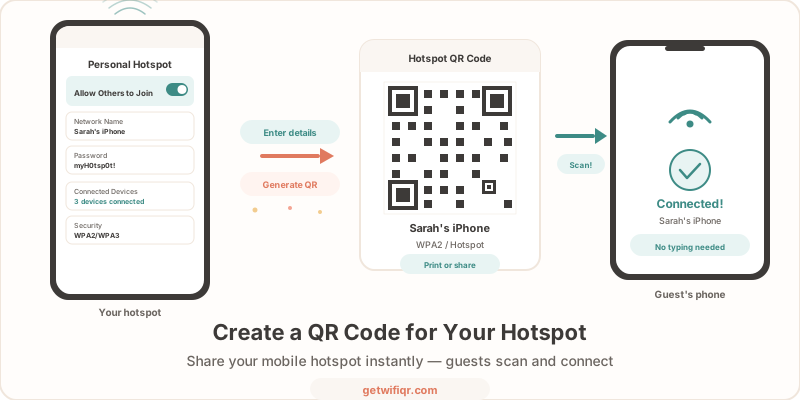
For an iPhone hotspot, first open Settings > Personal Hotspot, or Settings > Cellular > Personal Hotspot, and enable Allow Others to Join. The password appears under Wi-Fi Password. The hotspot name is the iPhone’s device name, found in Settings > General > About > Name.
Keep Personal Hotspot settings open while the guest connects. Apple’s Personal Hotspot instructions explain the native connection options, including Instant Hotspot for eligible Apple devices.
To make a reusable QR image, enter that exact name and password into the generator below. Test the result with the receiving device; QR recognition and supported network settings vary. A downloaded image cannot enable Personal Hotspot for you.
Other Android Phones and Portable Hotspots
Look in your phone’s settings for Hotspot, Wi-Fi hotspot or Hotspot & tethering. Check for a built-in Share or QR option before creating a separate code. Manufacturers use different menus; do not assume the router-WiFi Share screen contains your mobile hotspot credentials.
For a portable hotspot, use the network name and password shown on its display or in its administration settings. Do not use the administration login password unless the device explicitly uses it as the WiFi password too.
Create a Downloadable Hotspot QR Code
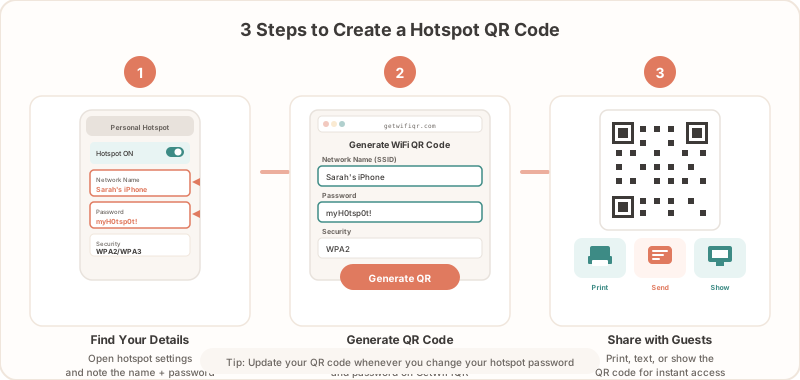
- Open the WiFi QR code generator.
- Enter your hotspot’s network name (SSID) exactly, including spaces and punctuation.
- Enter its WiFi password and choose the matching supported security option.
- Generate and download the code using the available export controls.
- Turn on the hotspot, then scan the downloaded image from a second device and confirm it can join.
Use the real settings from your device. A code with an incorrect name or password may scan successfully but still fail to connect. If manual connection works and QR connection does not, check the encoded details and the receiving device’s support before changing network security.
For repeated sharing, show the image on your phone or put it on a small card. Use the print size and placement guide for physical copies. Free and paid customization options are shown in the generator; a basic QR image and a branded sign serve different needs.
Hotspot QR Code Not Working?
First separate reading the image, joining the network and reaching the internet. They are different problems.
| Symptom | What to check |
|---|---|
| Camera does not recognize the code | Show the full image, increase screen brightness and try the device’s QR scanner. Avoid glare, blur and cropped edges. |
| Code scans, but the hotspot is missing | Turn on the hotspot and move the devices closer. Confirm the code contains the current network name. |
| Phone reports an incorrect password | Compare the current hotspot password with the one used to create the code. Generate a replacement after a password change. |
| Manual connection works, but QR joining fails | Check the security option and receiving device support. Keep manual connection as a fallback. |
| Phone joins, but has no internet | Check the host’s mobile signal, data allowance and tethering support. A new QR image cannot fix missing internet service. |
| Some devices join, but additional devices fail | Check the hotspot’s connection limit and device restrictions. Limits depend on the equipment and plan. |
For iPhone connection failures, Apple also suggests checking software updates, restarting the devices and trying Maximize Compatibility where available. See its hotspot support instructions.
Share Access Intentionally
A WiFi QR code is a convenient way to pass credentials to someone; it is not a way to keep those credentials secret. A QR reader can extract them. Avoid posting a private hotspot code publicly, and replace printed copies when you change the password.
For a temporary event or trip, stop sharing the hotspot when it is no longer needed. For a permanent guest network, the printable WiFi designs are a better fit than repeatedly showing a phone screen.
Related Guides
- Samsung and Android WiFi QR sharing — share an existing router network from phone settings.
- Connect to WiFi with a QR code — help the receiving device scan and join.
- Create a WiFi QR code — set up a reusable code for a home or business network.
- WiFi QR code security — understand what your code reveals.