You’ve generated your WiFi QR code. Now comes the part most people get wrong: printing and placing it. A QR code that’s too small, printed on flimsy paper, or stuck in the wrong spot means guests fumble around asking for the password anyway — defeating the whole purpose.
This guide covers the practical stuff: what size to print, which materials hold up, and exactly where to put your WiFi QR code depending on your business.
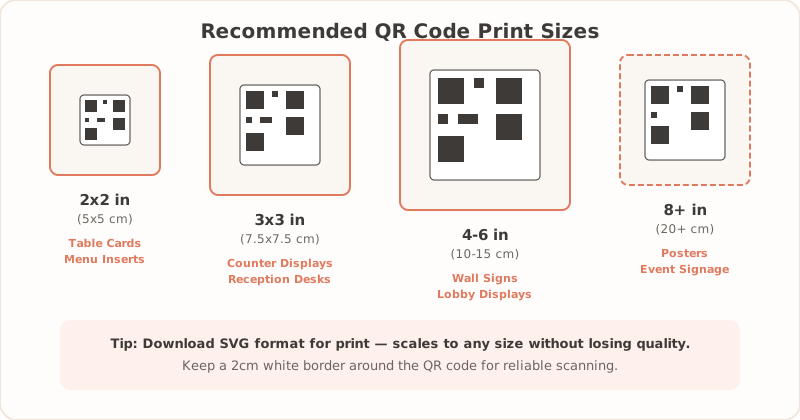
What Size Should Your WiFi QR Code Be?
Size depends on where people will scan from. A QR code on a table tent only needs to work from arm’s length. A wall sign in a lobby needs to be readable from across the room.
Here’s a general rule: plan for roughly 1 inch of QR code per 10 feet of scanning distance. So if someone will scan from 3 feet away (like at a table), a 2-inch code works fine. From 15 feet away? You’ll want at least 4-5 inches.
| Size | Best For | Typical Scanning Distance |
|---|---|---|
| 2×2 inches (5 cm) | Table tents, menu inserts, key card sleeves | Up to 3 feet (1 m) |
| 3×3 inches (8 cm) | Counter signs, desk stands, welcome books | Up to 5 feet (1.5 m) |
| 4×4 inches (10 cm) | Wall signs in small rooms, fridge magnets | Up to 8 feet (2.5 m) |
| 6×6 inches (15 cm+) | Lobby displays, posters, conference rooms | 10-15+ feet (3-5 m) |
The 3×3 inch size is the sweet spot for most businesses. It’s large enough to scan reliably without dominating your signage.
Best Materials for WiFi Signs
The material you print on matters more than you’d expect. A paper printout in a busy cafe will be stained and curling within a week. Here’s what works and where.
Regular printer paper gets the job done for testing. Print a copy, scan it with a couple of phones, and make sure everything connects. But don’t use paper as your permanent solution — it tears, stains, and looks unprofessional fast.
Cardstock (thick paper, 80-110 lb) is a solid step up. It holds its shape in a table tent or menu insert and looks clean. For low-traffic spots like a guest bedroom or a small office, cardstock is perfectly fine.
Laminated prints are the go-to for restaurants and cafes. The plastic coating makes them water-resistant and easy to wipe down. You can laminate cardstock at home with a cheap laminator or get it done at any office supply store for a couple of dollars.
Vinyl stickers work great for semi-permanent placement. Stick them on walls, counters, or the back of a door. They’re durable, waterproof, and look professional. Online print shops sell custom sticker prints in small quantities.
Acrylic stands give you that polished, premium look. A clear acrylic stand with your QR code on the front is perfect for hotel reception desks, coworking lobbies, or any place where presentation matters. They run $5-15 each and last for years.
| Material | Durability | Cost | Best For |
|---|---|---|---|
| Printer paper | Low — days to weeks | Pennies | Testing only |
| Cardstock | Medium — weeks to months | $0.10-0.50 | Table tents, menu inserts |
| Laminated print | High — months to years | $1-3 | Cafes, restaurants, kitchens |
| Vinyl sticker | High — years | $2-5 | Walls, counters, doors |
| Acrylic stand | Very high — years | $5-15 | Reception desks, lobbies |
Where to Place Your WiFi QR Code
Placement can make or break the experience. The goal is to put the code where guests naturally look when they want to connect — not hidden behind a plant or taped to a ceiling.
Restaurants & Cafes
Your guests want WiFi the moment they sit down. The best spots:
- Table tents next to the condiments or napkin holder — this is the number one spot
- Bottom corner of the menu — guests already have it in their hands
- Counter card near the register — catches people waiting to order
- Wall sign near the main seating area — use a larger size (4-6 inches)
For more restaurant-specific tips, check out our restaurants guide.
Hotels
Hotel guests expect connectivity everywhere. Think beyond the lobby:
- Room key card sleeves — guests see these immediately at check-in
- Bedside tent cards — right where they’ll reach for their phone
- Lobby signage near the seating area — use a large, visible display
- Conference rooms — a small stand on each table saves your staff from repeating the password
Our hotels guide covers this in more detail.
Airbnb & Vacation Rentals
For short-term rentals, WiFi is usually the first thing guests look for after dropping their bags:
- Welcome book — add the QR code to the first or second page
- Fridge magnet — guests gravitate to the kitchen, and a magnet is hard to miss
- Framed sign near the router — practical and decorative at the same time
- Entry table card — visible the moment they walk in
See our Airbnb guide for more ideas specific to vacation rentals.
Offices & Coworking Spaces
Offices usually need guest WiFi in a few key areas:
- Reception desk stand — visitors connect while they wait
- Meeting room table cards — one per room saves a lot of “what’s the WiFi?” interruptions
- Break room poster — casual, easy to scan while grabbing coffee
Check out the office guide for more on setting up WiFi access in workplaces.
Design Tips for Scannable QR Codes
A QR code that looks great but won’t scan is useless. Keep these principles in mind.
High contrast is non-negotiable. Dark code on a white or light background works best. Black on white is the gold standard. Avoid dark backgrounds with light-colored codes — many phone cameras struggle with inverted QR codes.
Respect the quiet zone. That’s the white space border around your QR code. Leave at least the width of one QR module (one of those tiny squares) as padding on all sides. Cramming other design elements right up against the code can confuse scanners.
Add helper text below the code. Something like “Scan to connect to WiFi” along with the network name. This tells people what the code does and reassures them it’s not a random link. It also helps if the auto-connect fails — they’ll know which network to look for manually.
Never shrink below 2×2 inches. Smaller codes work in theory, but real-world scanning conditions (dim lighting, phone cases, shaky hands) make tiny codes frustrating.
Test before you commit. Print one copy and scan it with at least two phones — one iPhone and one Android. Scan in the lighting conditions where it’ll actually be used. If it works reliably, go ahead and print your full batch.
Home Printing vs. Professional Printing
You don’t need a professional printer for every situation. Here’s when each option makes sense.
Home printer — Great for testing, personal use, and small quantities. Use the highest quality setting your printer offers and stick with matte paper to avoid glare. If you’re printing for your home WiFi or a single Airbnb unit, this is all you need.
Office supply stores (Staples, FedEx Office, etc.) — The sweet spot for most small businesses. They offer cardstock printing, lamination, and basic signage. Walk in with your file and walk out with laminated table tents for under $20.
Online print shops — Best for bulk orders or custom materials. If you need 50 vinyl stickers or branded acrylic stands, online shops offer better prices and more material options. Turnaround is usually 3-7 business days.
Pro tip: When downloading your QR code, grab the SVG version if available. SVG files are vector-based, meaning they scale to any size without getting blurry. This matters when you’re printing a wall poster from the same file you used for a table card.
How to Generate a Printable WiFi QR Code
If you haven’t created your QR code yet, the process takes about 30 seconds:
- Go to the WiFi QR code generator
- Enter your network name, password, and security type
- Download your QR code as PNG (for screen use) or SVG (for print)
Need a print-ready PDF, a specific size preset like a table tent or A4 sign, or a ZIP bundle with multiple formats? The Pro features include PDF export and size presets that save you the formatting work.
For the full walkthrough, see our step-by-step tutorial on creating a WiFi QR code.
Quick Checklist Before You Print
Run through this before you hit print or place your order:
- Tested on both iPhone and Android — scan with at least two different phones
- Right size for the location — refer to the size table above
- High contrast — dark code on a light background
- Includes “Scan to connect to WiFi” text and your network name
- Material suits the environment — laminated for kitchens, vinyl for walls, cardstock for table tents
- Password is current — if you changed your WiFi password recently, regenerate the QR code first
- Security reviewed — make sure your guest network is properly configured (see our WiFi QR code security guide)
That last point catches more people than you’d think. A QR code with an old password will scan fine but fail to connect, leaving your guests confused.
Ready to print? Create your free WiFi QR code and you’ll be done in under a minute.
Related Articles
- How to Create a WiFi QR Code (Free Step-by-Step Guide) — generate your QR code before printing
- WiFi Password Display Ideas for Every Business — creative ways to display your WiFi credentials
- Hotel Guest WiFi Setup: Best Practices for 2026 — placement and setup tips specific to hotels