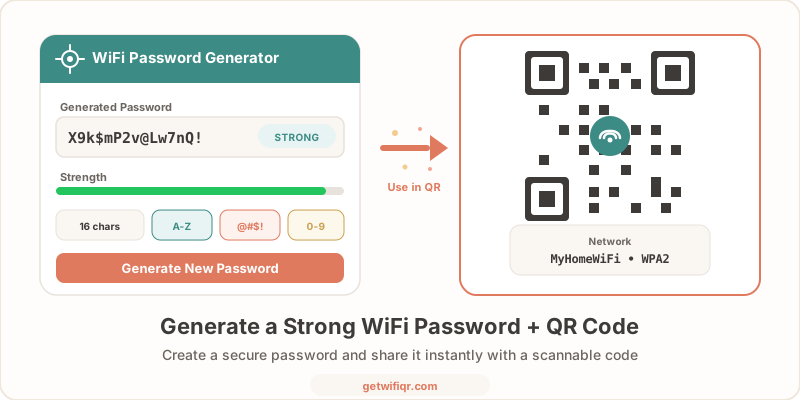
Your WiFi password is the front door to your home network. A weak one — “password123,” your street address, your dog’s name — is an open invitation. A strong password keeps strangers off your network, protects your devices, and prevents anyone from piggybacking on your internet connection.
The problem is that strong passwords are hard to type. That is exactly where a QR code comes in: you create a bulletproof password, then let guests scan a code instead of fumbling with 16 random characters.
This guide covers how to generate a strong WiFi password, what makes a password secure, and how to turn it into a QR code so sharing it is effortless.
Why You Need a Strong WiFi Password
A weak WiFi password creates real problems beyond just slow internet:
- Unauthorized access — Neighbors or passersby can connect to your network and use your bandwidth. Worse, anything they do online is tied to your IP address.
- Device exposure — Once on your network, an intruder can potentially access shared folders, printers, smart home devices, and security cameras.
- Data interception — On a poorly secured network, attackers can intercept unencrypted traffic between your devices and router.
- Legal liability — If someone uses your connection for illegal activity, the trail leads back to you.
Most home routers ship with a default password printed on a sticker. These defaults are often short, follow predictable patterns, and can be found in online databases. Changing your WiFi password to something strong is one of the simplest and most effective things you can do for your home network security.
For a deeper look at WiFi security and QR codes, see our WiFi QR code security guide.
What Makes a Good WiFi Password
Not all passwords are created equal. Here is what separates a strong WiFi password from a weak one:
Length
Aim for at least 12 characters — 16 or more is better. Every additional character multiplies the time needed to crack it. A 12-character password with mixed character types would take centuries to brute-force with current hardware.
Complexity
Use a mix of:
- Uppercase letters (A–Z)
- Lowercase letters (a–z)
- Numbers (0–9)
- Symbols (!@#$%^&*)
What to Avoid
- Dictionary words — “sunflower,” “football,” “welcome” are all in cracking dictionaries.
- Personal information — Your name, birthday, address, or pet’s name. These are easy to guess or find on social media.
- Common patterns — “123456,” “qwerty,” “abcdef,” or keyboard walks like “1qaz2wsx.”
- Repeated characters — “aaaaaa” or “111111” add length without adding security.
- The default password — Even if it looks random, router defaults are often generated from predictable algorithms.
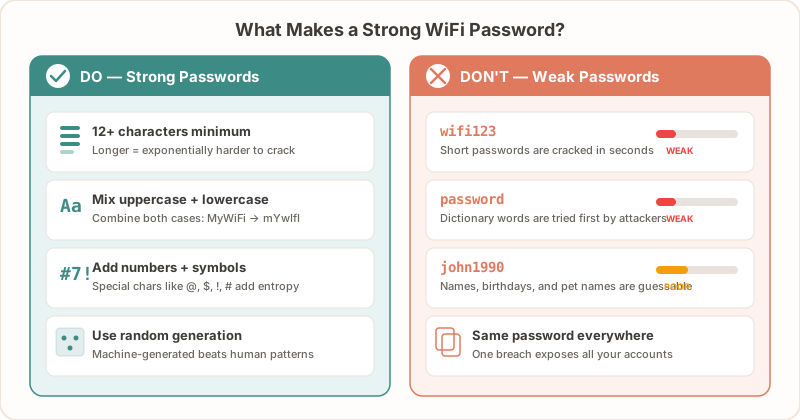
Good Examples vs. Bad Examples
| Bad Password | Why It Is Weak | Strong Alternative |
|---|---|---|
| password123 | Dictionary word + simple sequence | Kx#9mP$vL2nQ!wR4 |
| JohnSmith1990 | Personal info + birth year | 7gT$pNx!mW3kR#9v |
| 12345678 | Sequential numbers | Bq8&Lf2!Vx$5nMp# |
| wifi2026 | Predictable + short | Dn3#Rp!8wKx$Lv6m |
How to Generate a Strong WiFi Password
You have a few options for creating a strong password:
Option 1: Use a Password Manager
Tools like Bitwarden, 1Password, or KeePass have built-in password generators. Set the length to 16+ characters, enable all character types, and generate. This is the most reliable method because humans are bad at being random.
Option 2: The Passphrase Method
String together 4–5 unrelated words with numbers and symbols mixed in. For example: Lamp$42River!Frost9Key — this is long, complex, and easier to remember than random characters.
The key word is unrelated. “ILoveMyDog2026” is a passphrase, but it is a terrible one. Pick words that have no logical connection to each other.
Option 3: The Substitution Method
Start with a memorable sentence and transform it:
- Take the first letters: “My cat sleeps on the couch every Tuesday” →
McsoTceT - Add numbers and symbols:
McsoTceT→Mcs0Tc3T!# - Extend if needed:
Mcs0Tc3T!#2026
This gives you something memorable but not guessable.
Whichever method you choose, do not reuse passwords across networks and do not share your main network password publicly. If you need to give guests access, set up a separate guest network with its own password.
Turn Your New Password Into a QR Code
Here is the thing about strong passwords: they are painful to share. Telling a guest to type Kx#9mP$vL2nQ!wR4 is a recipe for frustration and typos. A WiFi QR code solves this completely.
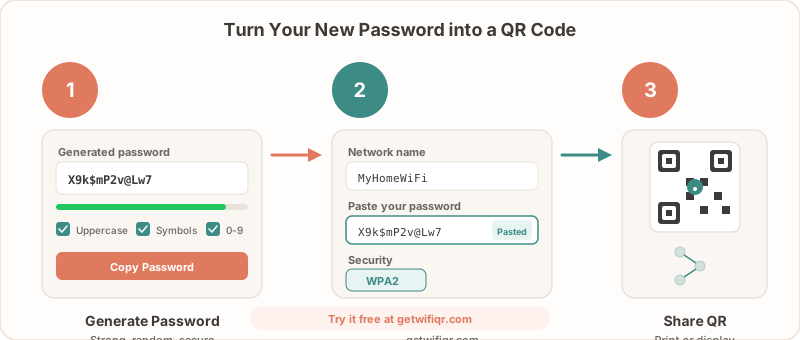
With GetWiFiQR, you create a scannable code that connects devices automatically:
- Go to GetWiFiQR and enter your network name (SSID).
- Select your security type — WPA2 or WPA3.
- Enter your new strong password — copy and paste it to avoid typos.
- Generate and download — get your QR code as PNG or SVG.
- Print and display — put it where guests can scan it.
Now your password can be as long and complex as you want. Guests scan the code with their phone camera and they are connected in seconds. No typing, no mistakes, no “what was the password again?”
For a detailed walkthrough with screenshots, see our complete guide to creating a WiFi QR code.
How to Change Your WiFi Password
Already have a password you want to replace? Here is the general process for most home routers:
- Find your router’s admin address — Usually
192.168.1.1or192.168.0.1. Check the sticker on your router or your router’s manual. - Log in to the admin panel — Use the admin username and password (not your WiFi password). The default is often “admin/admin” — if you have not changed this, you should.
- Navigate to wireless settings — Look for “Wireless,” “WiFi Settings,” or “WLAN” in the menu.
- Find the password field — It may be labeled “Password,” “Passphrase,” “Pre-Shared Key,” or “Security Key.”
- Enter your new strong password — Paste in the password you generated.
- Save and apply — Your router may restart. All connected devices will be disconnected and will need to reconnect with the new password.
After changing your password, update your WiFi QR code with the new credentials so guests can still connect by scanning. Just generate a new code at GetWiFiQR and replace the old one wherever it is displayed.
Tips After Changing Your Password
- Reconnect your own devices first — Phone, laptop, smart TV, smart home devices. Some IoT devices may need to be set up again from scratch.
- Update saved passwords — If your password manager or devices have the old password saved, update them.
- Print a new QR code — Replace the old one on your fridge, guest room, or front desk. For printing tips, see our WiFi QR code print guide.
Share Your New Password With a QR Code
A strong password only works if people can actually use it. Here is the best workflow:
- Generate a strong password using any method above.
- Set it on your router through the admin panel.
- Create a QR code at GetWiFiQR with your network name, security type, and new password.
- Print and display the QR code where guests need it — kitchen counter, guest bedroom, reception desk, or table tent at your cafe.
This gives you the best of both worlds: a password that is nearly impossible to crack, and a sharing method that takes two seconds.
Create your free WiFi QR code now — strong password, instant sharing, zero typing.
Related Articles
- Are WiFi QR Codes Secure? What You Need to Know — understand the security behind sharing WiFi credentials via QR code
- How to Create a WiFi QR Code (Free Step-by-Step Guide) — detailed walkthrough for first-time users
- WiFi Password QR Code — Create a Scannable Code — turn any password-protected network into a scannable code
- Print Your WiFi QR Code — A Complete Guide — sizing, materials, and placement tips for printed codes
- Guest WiFi Best Practices — set up a guest network that keeps your main network secure