You upgraded your router to WPA3 for better security. Smart move. But now your WiFi QR code doesn’t work — guests scan it and nothing happens, or they get a connection error. You’re not alone.
WPA3 is the latest WiFi security standard, and it’s a genuine improvement over WPA2 in every way. Better encryption, protection against brute-force attacks, forward secrecy. The problem? Most WiFi QR code generators haven’t caught up. They create WPA3 codes using the wrong format, and those codes silently fail on most devices.
This guide explains exactly why WPA3 QR codes break, which devices are affected, and how to generate one that works every time. If you just want a working code right now, our WiFi QR code generator handles WPA3 correctly — but read on if you want to understand why.
What Is WPA3 and Why Should You Care?
WPA3 (Wi-Fi Protected Access 3) replaced WPA2 as the standard WiFi security protocol. Introduced by the Wi-Fi Alliance in 2018 and now mainstream in most routers sold since 2020, WPA3 brings several meaningful security improvements:
- SAE handshake — Replaces the older PSK (Pre-Shared Key) handshake with Simultaneous Authentication of Equals. This makes offline dictionary attacks virtually impossible.
- Per-session encryption — Each connection gets unique encryption keys, so even if one session is compromised, others remain secure.
- Forward secrecy — Past sessions can’t be decrypted even if the network password is later exposed.
- Brute-force protection — The protocol limits authentication attempts, blocking automated password guessing.
If you run a business that offers guest WiFi — a hotel, restaurant, Airbnb, or office — upgrading to WPA3 is a solid move for protecting both your network and your guests.
The catch: the QR code ecosystem hasn’t fully caught up. And that’s where things go wrong.
Why Most WPA3 WiFi QR Codes Are Broken
The root cause is simple: most QR code generators encode WPA3 incorrectly. There are two specific problems.
The Type Field Problem: SAE vs WPA
Every WiFi QR code follows a standard text format that smartphones know how to parse:
WIFI:T:WPA;S:MyNetwork;P:MyPassword;;The T: field specifies the security type. For WPA and WPA2 networks, the correct value is WPA. Here’s where it gets confusing: for WPA3 networks, the correct value is still WPA — not SAE.
Why? Because SAE (Simultaneous Authentication of Equals) is the authentication protocol used within WPA3. It’s not a security type identifier. The WPA3 specification (Section 7.1) explicitly states that the type field should be WPA.
Many generators — and even some developer tools — incorrectly use T:SAE for WPA3 networks. When a phone encounters T:SAE, it doesn’t recognize the security type and silently fails. No error message, no prompt. The user scans the code and nothing happens.
This issue has been documented across multiple projects: ZXing (the most widely used QR code library), OpenWrt, and several community forums. As Steve’s technical breakdown puts it: most WPA3 WiFi QR codes are broken.
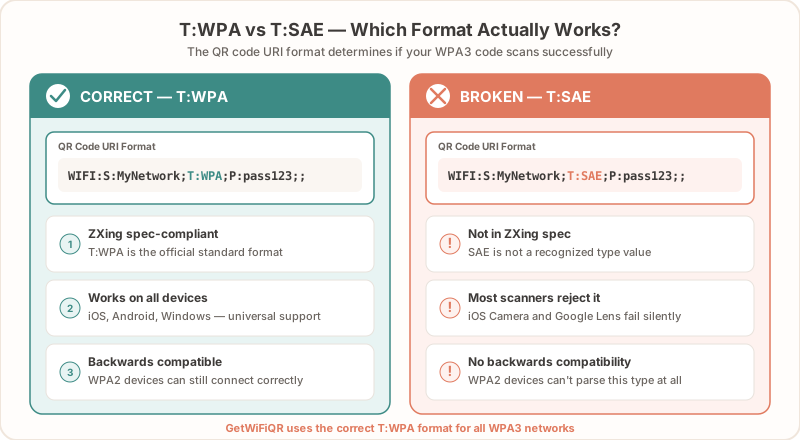
GetWiFiQR uses T:WPA — the correct value per the specification. This is why codes generated with our tool work on WPA3 networks while others don’t.
The Encoding Problem: Percent vs Backslash
The second issue is subtler but equally important. When your network name or password contains special characters (semicolons, colons, commas, backslashes), those characters need to be escaped so they don’t break the QR code format.
The WPA3 specification says to use percent-encoding (like %3B for a semicolon). But Android’s QR code scanner — built on the ZXing library — expects backslash escaping (like \; for a semicolon). It doesn’t understand percent-encoded characters.
This creates a frustrating situation: a QR code that follows the spec perfectly might work on iPhones but fail on Android devices, or vice versa.
The practical solution is to use backslash escaping, which works on both platforms. The ZXing format has become the de facto standard because of Android’s massive market share.
GetWiFiQR uses backslash escaping for maximum cross-device compatibility. Your code works on both iPhones and Android phones regardless of which special characters your password contains.
The Transition Mode Question
There’s one more nuance worth understanding. The WPA3 specification defines an R: field (transition disable) in the QR code format:
R:1means “WPA3-only — do not allow WPA2 fallback”- Omitting
R:(orR:0) means “WPA2/WPA3 transition mode is allowed”
Most networks today run in WPA2/WPA3 transition mode, which means both WPA2 and WPA3 devices can connect. In this mode, T:WPA works universally — WPA3-capable devices negotiate the stronger protocol automatically.
If you’ve configured your router for WPA3-only mode, be aware that older devices may not connect regardless of how the QR code is formatted. For guest WiFi, transition mode is almost always the right choice.
Device Compatibility Matrix
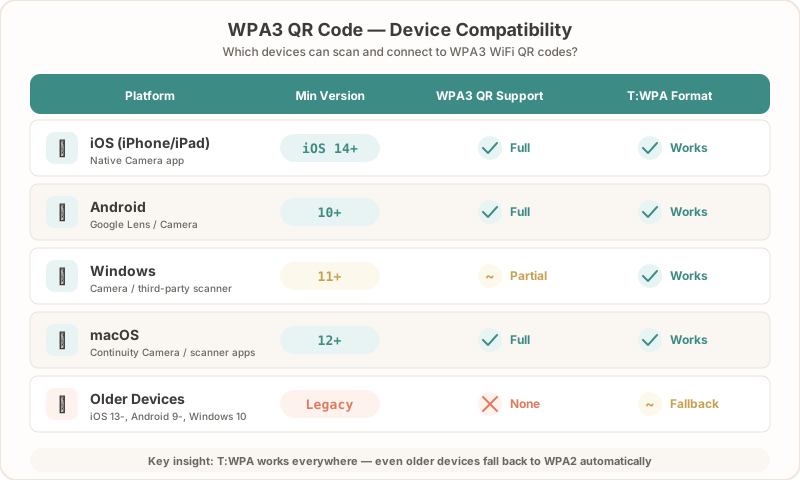
Not all devices handle WPA3 QR codes the same way. Here’s what works and what doesn’t:
| Device / OS | WPA3 QR Support | Notes |
|---|---|---|
| iPhone (iOS 11+) | Works with T:WPA | Native camera app scans WiFi QR codes |
| iPhone (iOS 18+) | Full native support | Passwords app can also generate and share WiFi QR codes |
| Android 10+ | Works with T:WPA | Must use backslash escaping for special characters |
| Android 13+ | Best support | Improved WPA3 handling and more secure sharing methods |
| Older Android (<10) | Limited | May need a third-party QR scanner app |
| Windows 11 | Can scan codes | Camera app supports WiFi QR codes |
| macOS (Ventura+) | Limited | No native QR scanning from camera; works via Continuity from iPhone |
Key takeaway: T:WPA with backslash escaping gives you the widest possible device compatibility. This combination works for the vast majority of smartphones in use today.
Exact behavior can vary by manufacturer and OS version. When in doubt, test with at least one iPhone and one Android device before printing your QR codes. Our guide to printing WiFi QR codes covers sizing and placement tips.
How to Create a WPA3 WiFi QR Code That Actually Works
Here’s the step-by-step process:
Step 1: Find Your Network Name (SSID)
Your SSID must match exactly — including capitalization, spaces, and special characters. Check your router’s admin panel if you’re not sure. Common mistakes include trailing spaces or confusing similar characters (like zero and the letter O).
Step 2: Confirm Your Password
WiFi passwords are case-sensitive. Copy it directly from your router settings if possible.
Step 3: Select the Security Type
In GetWiFiQR, select WPA/WPA2/WPA3. The generator encodes this as T:WPA, which is the correct format for all three protocols. You don’t need to specify WPA3 separately — the format handles it automatically.
Step 4: Generate and Download
GetWiFiQR creates the correctly formatted string (WIFI:T:WPA;S:YourNetwork;P:YourPassword;;) and renders a scannable QR code. Download it as SVG for print (scales to any size without losing quality) or PNG for digital use.
Step 5: Test Before You Print
Scan the code with at least one iPhone and one Android phone. Confirm that the device prompts you to join the network and that the connection succeeds.
Create your WPA3-compatible WiFi QR code free →
For a more detailed walkthrough of QR code creation in general, see our step-by-step guide to creating WiFi QR codes.
Troubleshooting: WPA3 QR Code Not Working
If your WPA3 QR code isn’t working, work through these common issues.
QR Code Scans but Doesn’t Connect
- Check your password. WiFi passwords are case-sensitive. Even one wrong character will cause a silent failure.
- Verify your SSID. The network name in the QR code must match your router’s SSID exactly, including spaces and special characters.
- Try transition mode. If your router is set to WPA3-only, switch to WPA2/WPA3 transition mode. This gives the widest device compatibility without sacrificing security for WPA3-capable devices.
- Confirm device support. The scanning device must support WPA3 to connect to a WPA3-only network. Check the compatibility matrix above.
QR Code Doesn’t Scan at All
- Check the size. QR codes need to be at least 2 cm (about 0.8 inches) wide for reliable phone scanning.
- Check the contrast. The code needs clear contrast against its background. Dark code on a light background works best. Avoid placing QR codes on busy or colored backgrounds.
- Try a different scanner. Some third-party camera apps handle QR codes poorly. Use the default camera app on iPhone or Google Lens on Android.
- Regenerate the code. If you used a generator that encodes WPA3 as
T:SAE, the code is malformed. Generate a new one using a tool that uses the correctT:WPAformat.
Works on iPhone but Not Android (or Vice Versa)
This is almost always an encoding issue. If the generator used percent-encoding for special characters, Android won’t understand it. If it used non-standard escaping, iPhone might reject it.
The fix: use a generator that uses backslash escaping (ZXing format). GetWiFiQR does this by default, so generating a new code should resolve the cross-platform issue.
Guest Devices Can’t Connect to WPA3-Only Network
Some older devices simply don’t support WPA3 — no QR code format will change that. The solution:
- Enable WPA2/WPA3 transition mode on your router. This is usually a single setting in your router’s wireless security configuration.
- Regenerate your QR code after changing the setting (the SSID and password don’t change, but it’s good practice to test again).
- WPA3-capable devices still negotiate WPA3 automatically. You’re not downgrading their security.
WPA3 QR Codes for Businesses
If you manage guest WiFi for a business, here’s what matters:
Use WPA2/WPA3 transition mode. Your guests carry everything from the latest iPhones to five-year-old budget Android phones. Transition mode ensures everyone can connect while still providing WPA3 security to capable devices.
Regenerate QR codes after router upgrades. If you recently upgraded your router or changed security settings, create a fresh QR code. The old one might still work, but testing a new one eliminates any risk.
Print at high quality. SVG files from GetWiFiQR can be scaled to any size — from a small table tent to a large poster — without losing sharpness. This matters for scanning reliability. See our printing guide for best practices.
Consider your placement. Put QR codes where guests naturally look for WiFi information: at the front desk, on room keycards, near the register, or on table tents. For more WiFi sharing ideas, check out our guide to displaying WiFi information.
Whether you run a hotel, restaurant, Airbnb, or office, the core advice is the same: use a generator that handles WPA3 correctly and test the code across devices.
The Technical Specification
For developers and network engineers, here’s the complete WiFi QR code format with all WPA3-relevant fields:
WIFI:T:WPA;S:<ssid>;P:<password>;H:<hidden>;R:<transition_disable>;K:<public_key>;;| Field | Description | Values |
|---|---|---|
T | Security type | WPA (WPA/WPA2/WPA3), WEP, nopass |
S | Network SSID | String, backslash-escape ;, ,, :, \ |
P | Password | String, same escaping rules |
H | Hidden network | true or false (optional, defaults to false) |
R | Transition disable | Bitmap: 1 = WPA3-only, omit for transition mode (optional) |
K | Public key | DER-encoded public key for OWE / Enhanced Open (optional) |
The R and K fields are WPA3-specific additions. Most consumer use cases only need T, S, and P. The R:1 flag is only relevant if you’ve explicitly disabled WPA2 fallback on your router.
Sources:
- WPA3 Specification — Wi-Fi Alliance (Section 7.1)
- Android WPA3 and Wi-Fi Enhanced Open documentation
TL;DR
Most WPA3 QR code problems come down to two things:
- Wrong type field. Generators using
T:SAEinstead ofT:WPA. The spec saysWPA. Devices don’t recognizeSAE. - Wrong encoding. Generators using percent-encoding instead of backslash escaping. Android doesn’t understand percent-encoding in WiFi QR strings.
The fix is straightforward: use a generator that gets both of these right. GetWiFiQR uses T:WPA and backslash escaping by default — which means your WPA3 WiFi QR code works on iPhones, Android phones, and everything in between.
For guest networks, use WPA2/WPA3 transition mode to maximize device compatibility without sacrificing security.
Create your free WiFi QR code →
Related Articles
- Are WiFi QR Codes Secure? What You Need to Know — deep dive into WiFi QR code security, including WPA3 benefits
- How to Create a WiFi QR Code (Free Step-by-Step Guide) — create your WiFi QR code in under a minute
- Best WiFi QR Code Generators Compared — how GetWiFiQR stacks up against alternatives
- How to Print a WiFi QR Code — sizing, materials, and placement tips
- Guest WiFi Best Practices for Small Businesses — set up a secure guest network the right way