WiFi QR codes have become the modern way to share network access. Instead of spelling out complicated passwords or scribbling them on sticky notes, you can simply let guests scan a QR code with their phone’s camera. In this guide, we’ll show you exactly how to create one.
Quick answer: to create a WiFi QR code, enter the SSID, security type, and password, then download or print the QR code. If the network is hidden, enable the hidden-network option before generating.
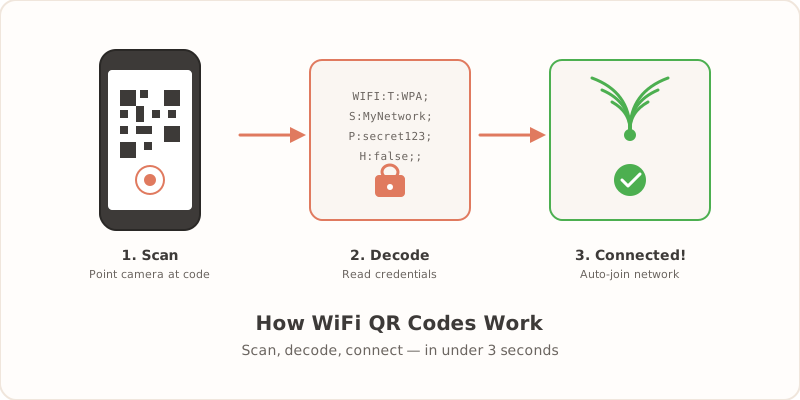
What is a WiFi QR Code?
A WiFi QR code is a special type of QR code that contains your network credentials (SSID and password) in an encoded format. When someone scans it with their smartphone camera, their phone automatically prompts them to connect to your WiFi network. No typing required.
This technology works natively on:
- iPhone (iOS 11 and later) - just point the camera at the QR code
- Android (Android 10 and later) - use the camera or Google Lens
WiFi QR Code Format Explained
Behind the scenes, WiFi QR codes use a standardized text format that smartphones know how to interpret. The format looks like this:
WIFI:T:WPA;S:NetworkName;P:Password;H:false;;
Here’s what each part means:
- T: The security type. Common values are
WPA(covers WPA, WPA2, and WPA3),WEP, ornopassfor open networks. - S: Your network’s SSID (the name that shows up when you search for WiFi). If your SSID contains special characters like semicolons, commas, or colons, they need to be escaped with a backslash.
- P: Your WiFi password. Same escaping rules apply for special characters.
- H: Whether the network is hidden. Set to
trueif your network doesn’t broadcast its name,falseotherwise.
The string ends with a double semicolon ;; to signal the end of the data.
You don’t need to memorize or type this format yourself. Our WiFi QR code generator handles all of this automatically. But understanding the format helps you verify that a QR code is legitimate (not a phishing link) and troubleshoot issues if they come up. If security is something you want to learn more about, our WiFi QR code security guide goes deeper.
Step-by-Step: Creating Your WiFi QR Code
| Step | Field or action | What to enter or check |
|---|---|---|
| 1 | SSID | Enter the exact WiFi network name, including spaces and capitalization |
| 2 | Security type | Choose WPA/WPA2/WPA3 for most modern routers |
| 3 | Password | Enter the exact router or guest-network password |
| 4 | Hidden network | Enable only if the SSID is not broadcast |
| 5 | Download | Save PNG for simple printing or SVG for scalable designs |
| 6 | Use high contrast, enough white space, and a readable written fallback |
Step 1: Gather Your WiFi Details
Before you begin, you’ll need:
- Network Name (SSID): The name that appears when you search for WiFi networks
- Password: Your WiFi password
- Security Type: Usually WPA/WPA2/WPA3 for modern networks
Not sure about your security type? WPA/WPA2/WPA3 is the default for most routers made after 2006. If you have a very old router, it might use WEP.
Step 2: Go to the Generator
Visit our free WiFi QR code generator. It works right in your browser, and your credentials never leave your device - everything is processed locally.
Step 3: Enter Your Details
Fill in the form:
- Enter your network name exactly as it appears (case-sensitive)
- Enter your password
- Select your security type (WPA/WPA2/WPA3 for most networks)
- Check “Hidden Network” only if your network doesn’t broadcast its name
Step 4: Generate and Download
Click “Generate QR Code” and your code will appear instantly. You can download it as:
- PNG: Best for printing and most uses
- SVG: Vector format for high-quality scaling
Step 5: Print and Display
Print your QR code and place it where guests can easily scan it:
- Restaurants: On menus, table tents, or near the register
- Hotels: In guest rooms, the lobby, or conference areas (see our hotel WiFi setup guide for placement tips)
- Airbnb: In your welcome guide or near the entrance
- Office: In meeting rooms or reception areas
Best Practices for WiFi QR Codes
Size Matters
Make sure your QR code is large enough to scan easily. A minimum of 2x2 inches (5x5 cm) works well for most situations. For wall displays or signage, go larger. For a detailed breakdown of sizes, materials, and placement tips, see our complete printing guide.
Contrast is Key
QR codes work best with high contrast. Black on white is ideal. Avoid placing QR codes on busy backgrounds or using light colors.
Test Before Deploying
Always test your QR code with multiple devices before printing multiple copies. Try scanning with both iPhone and Android to ensure it works universally.
Update When You Change Passwords
When you update your WiFi password, remember to generate a new QR code and replace the old ones. The good news? It only takes seconds to create a new one.
Common Questions
Can I customize my QR code?
The standard QR code format is designed for maximum reliability. While some services offer colored or branded QR codes, these can sometimes cause scanning issues. For the best results, stick with the classic black-and-white design.
Does it work without internet?
Yes! Once printed, the QR code works completely offline. The guest’s phone reads the code data directly - no internet connection needed to scan (though they will need to be in range of your WiFi to connect).
Is it safe?
WiFi QR codes are as safe as sharing your password any other way. The QR code simply contains your credentials in a convenient format. For security tips, check out our guide on WiFi QR code security.
Do QR codes expire?
No. A WiFi QR code doesn’t have an expiration date. It will continue working as long as the WiFi network name and password remain the same. If you change your password, you’ll need to generate a new QR code, but the old one doesn’t “expire” — it just won’t match the network credentials anymore.
Can I use one QR code for multiple locations?
Only if every location uses the exact same network name and password. In practice, most businesses have different credentials at each location, so you’ll need a separate QR code for each. This is a good thing from a security perspective.
What if my password has special characters?
Our generator handles special characters automatically. Characters like semicolons, colons, backslashes, and commas are escaped properly in the encoded QR data. You just type your password as-is and the tool takes care of the rest.
Does scanning work through glass or plastic?
Yes, in most cases. QR codes scan fine through clear glass, plastic laminate, and acrylic frames. Just make sure there’s no heavy glare from lighting that washes out the contrast. Matte laminate finishes tend to work better than glossy ones in brightly lit environments.
Troubleshooting: When Your QR Code Doesn’t Work
Sometimes a QR code scans successfully but the phone doesn’t connect to WiFi. Here are the most common causes and how to fix them.
The password doesn’t match
This is the number one issue. WiFi passwords are case-sensitive, and even a single wrong character will prevent connection. Double-check that the password you entered in the generator matches your router’s password exactly. Watch out for common mix-ups like the number 0 versus the letter O, or 1 versus lowercase l.
The network name is wrong
Just like the password, the SSID must match exactly. If your network is called “MyHome WiFi” (with a space), entering “MyHomeWiFi” (without a space) will fail. Copy-paste from your router’s admin panel if you’re unsure.
The phone’s camera doesn’t recognize the QR code
Make sure you’re scanning in good lighting and holding the phone steady about 6-10 inches from the code. If the code is too small or the contrast is poor, the camera may not detect it. Try increasing the print size or improving the lighting. On older Android phones, you may need to open Google Lens rather than the default camera app.
The security type is set incorrectly
If you selected WEP but your router uses WPA2, or vice versa, the connection will fail even if the password is correct. When in doubt, select WPA/WPA2 — this works for the vast majority of modern networks.
The network is hidden but “Hidden” isn’t checked
If your router is configured to hide the SSID (it doesn’t broadcast the network name), you need to check the “Hidden Network” option when generating the QR code. Without this flag, the phone won’t know to look for a hidden network and the connection will fail silently.
The phone is too far from the router
Scanning the QR code can happen anywhere, but the actual WiFi connection requires you to be within range of the router. If a guest scans the code in a lobby but the router is on another floor, the connection attempt will fail. Make sure QR codes are displayed in areas with strong signal coverage.
If you’ve checked all of these and the code still isn’t working, try generating a fresh QR code from scratch. Occasionally, a corrupted download or a printing artifact can make a code unreadable.
Ready to Create Your QR Code?
Creating a WiFi QR code takes less than a minute and makes life easier for everyone. Whether you’re running a restaurant, managing an Airbnb property, or welcoming visitors to your office, a WiFi QR code is the modern solution for password sharing.
Related Articles
- WiFi Password Generator for WPA2/WPA3 Routers — create a strong password before making the QR code
- WiFi Connectivity QR Code: Connect on Any Device — help guests scan and join after printing
- WiFi Password QR Code — Create a Scannable Code — understand the access-code payload
- Print WiFi QR Code: Size, Material & Placement Guide — everything you need to know about printing and displaying your QR code
- Are WiFi QR Codes Secure? What You Need to Know — security best practices for sharing WiFi via QR codes
- WiFi QR Code vs. Sharing Password Manually — how QR codes compare to traditional password sharing